If your web browser is redirected to Happili.com it is a sign of a ZeroAccess/Serifef-related trojan on board a computer. It is one of the most widely spread redirect trojan for a couple of months now.
This trojan will redirect search results on Google or any other web search engines, prevent you from viewing the Web pages that you want to see on your browser and display various ads. What is more, Happili virus will block an access to security websites, disable legitimate security software and Windows Task Manager.
Showing posts with label Browser hijacker. Show all posts
Showing posts with label Browser hijacker. Show all posts
Sunday, April 15, 2012

Friday, October 22, 2010
Remove antispyway.com browser hijacker
Antispyway.com is a misleading web site, which is associated with a program called Antivirus Action. This program is a rogue antispyware tool, because uses fake scan results and fake security warnings as a way to force you to purchase its full version.
When your computer is infected with Antivirus Action, then every time you try to open any website, instead you will be shown antispyway fake warning page.
Screen shoot of the misleading website below:

Antispyway.com will offer to buy the full version of Antivirus Action. Most important do not purchase anything here. This misleading site is only one component of deceptive tactics that uses this fake security program to trick you.
If you find that your computer is infected with this malware and your browser is redirected to antispyway.com, then use the step by step removal guide here or the instructions below to remove it from your system for free.
Reset proxy settings of your browser (this malware hijacked them) by doing: run Internet Explorer, Click Tools and select Internet Options. Select Connections Tab and click to Lan Settings button. Uncheck “Use a proxy server” box. Click OK and click OK again.
Download Malwarebytes Anti-malware. Double click mbam-setup.exe to install the application. When installation is complete, make sure a checkmark is placed next to Update Malwarebytes' Anti-Malware and Launch Malwarebytes' Anti-Malware, then click Finish. If an update is found, it will download and install the latest version.
Once the program has loaded you will see a screen like below.

Select "Perform Quick Scan", then click Scan. When the scan is done, click OK, then Show Results to view the results. You will see a list of malware that Malwarebytes' Anti-Malware found on your computer. Note: list of malware may be different than what is shown in the screen below.

Make sure that everything is checked, and click Remove Selected. Once disinfection is finished, a log will open in Notepad and you may be prompted to Restart.
If the instructions does not help you, then ask for help in the Spyware removal forum.
When your computer is infected with Antivirus Action, then every time you try to open any website, instead you will be shown antispyway fake warning page.
Screen shoot of the misleading website below:

antispyway.com - browser hijacker
Antispyway.com will offer to buy the full version of Antivirus Action. Most important do not purchase anything here. This misleading site is only one component of deceptive tactics that uses this fake security program to trick you.
If you find that your computer is infected with this malware and your browser is redirected to antispyway.com, then use the step by step removal guide here or the instructions below to remove it from your system for free.
How to remove antispyway.com browser hijacker/virus
Reboot your computer in Safe mode with networking.Reset proxy settings of your browser (this malware hijacked them) by doing: run Internet Explorer, Click Tools and select Internet Options. Select Connections Tab and click to Lan Settings button. Uncheck “Use a proxy server” box. Click OK and click OK again.
Download Malwarebytes Anti-malware. Double click mbam-setup.exe to install the application. When installation is complete, make sure a checkmark is placed next to Update Malwarebytes' Anti-Malware and Launch Malwarebytes' Anti-Malware, then click Finish. If an update is found, it will download and install the latest version.
Once the program has loaded you will see a screen like below.

Malwarebytes' Anti-Malware
Select "Perform Quick Scan", then click Scan. When the scan is done, click OK, then Show Results to view the results. You will see a list of malware that Malwarebytes' Anti-Malware found on your computer. Note: list of malware may be different than what is shown in the screen below.

Malwarebytes' Anti-Malware - lists of malicious software
Make sure that everything is checked, and click Remove Selected. Once disinfection is finished, a log will open in Notepad and you may be prompted to Restart.
If the instructions does not help you, then ask for help in the Spyware removal forum.
Tuesday, September 7, 2010
Antivirhand.com browser hijacker removal
Antivirhand.com is web site created to spread a program called Security Suite. The program is a rogue antispyware tool because it lists a lot of false infections and displays numerous fake security alerts and nag screens with one purpose to trick you into buying the software.
When your computer is infected with Security Suite, it will redirect you from sites that you want to visit on antivirhand fake warning page. The page states:
Screen shoot of the malicios website below:
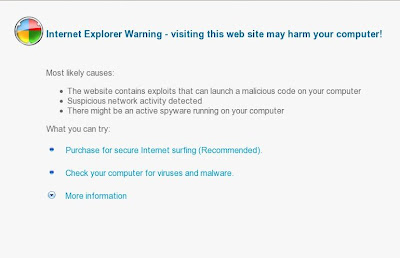
Of course, all that you will be informed on the site is a fraud. Do not trust this information, just ignore it, as well as that Security Suite will show you (fake warning and a list of found infections).
As mentioned above, and antivirhand.com site, and Security Suite designed with one purpose - using deception and threats to force you to open your wallet and pull out the money. Instead, use the removal guide here or the instructions below to remove antivirhand.com browser hijacker and any other infections you may have on your computer for free.
Reset proxy settings of your browser (this malware hijacked them) by doing: run Internet Explorer, Click Tools and select Internet Options. Select Connections Tab and click to Lan Settings button. Uncheck “Use a proxy server” box. Click OK and click OK again.
Download Malwarebytes Anti-malware. Double click mbam-setup.exe to install the application. When installation is complete, make sure a checkmark is placed next to Update Malwarebytes' Anti-Malware and Launch Malwarebytes' Anti-Malware, then click Finish. If an update is found, it will download and install the latest version.
Once the program has loaded you will see a screen like below.
Select "Perform Quick Scan", then click Scan. When the scan is done, click OK, then Show Results to view the results. You will see a list of malware that Malwarebytes' Anti-Malware found on your computer. Note: list of malware may be different than what is shown in the screen below.
Make sure that everything is checked, and click Remove Selected. Once disinfection is finished, a log will open in Notepad and you may be prompted to Restart.
If the instructions does not help you, then ask for help in the Spyware removal forum.
When your computer is infected with Security Suite, it will redirect you from sites that you want to visit on antivirhand fake warning page. The page states:
Internet Explorer cannot display the webpage.:
Internet Explorer Warning - visiting this web site may harm your computer!
Most likely causes:
* The website contains exploits that can launch a malicious code on your computer
* Suspicious network activity detected
* There might be an active spyware running on your computer
What you can try:
Purchase for secure Internet surfing (Recommended).
Check your computer for viruses and malware.
More information
Screen shoot of the malicios website below:

antivirhand.com - fake warning page
Of course, all that you will be informed on the site is a fraud. Do not trust this information, just ignore it, as well as that Security Suite will show you (fake warning and a list of found infections).
As mentioned above, and antivirhand.com site, and Security Suite designed with one purpose - using deception and threats to force you to open your wallet and pull out the money. Instead, use the removal guide here or the instructions below to remove antivirhand.com browser hijacker and any other infections you may have on your computer for free.
How to remove antivirhand.com browser hijacker/virus
Reboot your computer in Safe mode with networking.Reset proxy settings of your browser (this malware hijacked them) by doing: run Internet Explorer, Click Tools and select Internet Options. Select Connections Tab and click to Lan Settings button. Uncheck “Use a proxy server” box. Click OK and click OK again.
Download Malwarebytes Anti-malware. Double click mbam-setup.exe to install the application. When installation is complete, make sure a checkmark is placed next to Update Malwarebytes' Anti-Malware and Launch Malwarebytes' Anti-Malware, then click Finish. If an update is found, it will download and install the latest version.
Once the program has loaded you will see a screen like below.
Malwarebytes' Anti-Malware
Select "Perform Quick Scan", then click Scan. When the scan is done, click OK, then Show Results to view the results. You will see a list of malware that Malwarebytes' Anti-Malware found on your computer. Note: list of malware may be different than what is shown in the screen below.
Malwarebytes' Anti-Malware - lists of malicious software
Make sure that everything is checked, and click Remove Selected. Once disinfection is finished, a log will open in Notepad and you may be prompted to Restart.
If the instructions does not help you, then ask for help in the Spyware removal forum.
Monday, September 6, 2010
Antispyfond.com hijacker removal guide
Antispyfond.com is a malicious site, which is affiliated with a program called Security Suite. The program is a rogue antispyware because it uses misleading methods such false scan results and fake security alerts as a way to trick you into purchasing its full version.
When your computer is infected with Security Suite, then every time you try to open any website, instead you will be shown antispyfond.com fake warning that states:
Screen shoot of the malicious website below:
What is more, antispyfond site will offer to buy the full version of the Security Suite. Most important do not purchase it.
If you find that your computer is infected with this malware and your browser is redirected to Antispyfond.com, then use the step by step removal guide here or the instructions below to remove it from your system for free.
Reset proxy settings of your browser (this malware hijacked them) by doing: run Internet Explorer, Click Tools and select Internet Options. Select Connections Tab and click to Lan Settings button. Uncheck “Use a proxy server” box. Click OK and click OK again.
Download Malwarebytes Anti-malware. Double click mbam-setup.exe to install the application. When installation is complete, make sure a checkmark is placed next to Update Malwarebytes' Anti-Malware and Launch Malwarebytes' Anti-Malware, then click Finish. If an update is found, it will download and install the latest version.
Once the program has loaded you will see a screen like below.
Select "Perform Quick Scan", then click Scan. When the scan is done, click OK, then Show Results to view the results. You will see a list of malware that Malwarebytes' Anti-Malware found on your computer. Note: list of malware may be different than what is shown in the screen below.
Make sure that everything is checked, and click Remove Selected. Once disinfection is finished, a log will open in Notepad and you may be prompted to Restart.
If the instructions does not help you, then ask for help in the Spyware removal forum.
When your computer is infected with Security Suite, then every time you try to open any website, instead you will be shown antispyfond.com fake warning that states:
Internet Explorer cannot display the webpage.:
Internet Explorer Warning - visiting this web site may harm your computer!
Most likely causes:
* The website contains exploits that can launch a malicious code on your computer
* Suspicious network activity detected
* There might be an active spyware running on your computer
What you can try:
Purchase for secure Internet surfing (Recommended).
Check your computer for viruses and malware.
More information
Screen shoot of the malicious website below:
Antispyfond.com - browser hijacker
What is more, antispyfond site will offer to buy the full version of the Security Suite. Most important do not purchase it.
If you find that your computer is infected with this malware and your browser is redirected to Antispyfond.com, then use the step by step removal guide here or the instructions below to remove it from your system for free.
How to remove antispyfond.com browser hijacker/virus
Reboot your computer in Safe mode with networking.Reset proxy settings of your browser (this malware hijacked them) by doing: run Internet Explorer, Click Tools and select Internet Options. Select Connections Tab and click to Lan Settings button. Uncheck “Use a proxy server” box. Click OK and click OK again.
Download Malwarebytes Anti-malware. Double click mbam-setup.exe to install the application. When installation is complete, make sure a checkmark is placed next to Update Malwarebytes' Anti-Malware and Launch Malwarebytes' Anti-Malware, then click Finish. If an update is found, it will download and install the latest version.
Once the program has loaded you will see a screen like below.
Malwarebytes' Anti-Malware
Select "Perform Quick Scan", then click Scan. When the scan is done, click OK, then Show Results to view the results. You will see a list of malware that Malwarebytes' Anti-Malware found on your computer. Note: list of malware may be different than what is shown in the screen below.
Malwarebytes' Anti-Malware - lists of malicious software
Make sure that everything is checked, and click Remove Selected. Once disinfection is finished, a log will open in Notepad and you may be prompted to Restart.
If the instructions does not help you, then ask for help in the Spyware removal forum.
Saturday, September 4, 2010
Antispyjob.com browser hijacker removal guide
Antispyjob.com is a new misleading website, which Security Suite uses to promote and distribute itself. The site stats:
Do not trust this information, because antispyjob.com is created with purpose to scare you into thinking that your PC in danger and thus force you to buy the full version of Security Suite. Important to know, the program is a fake antispyware program, which looks like an antispyware application, but in reality is not be able to detect or remove any viruses and trojans.
If you find that your computer is infected with this malware and your browser is redirected to antispyjob site, then most important do not purchase anything from this misleading web site. Ignore all that this site will say and suggest you. Use the antispyjob.com removal guide here or the steps below to remove it from your system for free.
Reset proxy settings of your browser (this malware hijacked them) by doing: run Internet Explorer, Click Tools and select Internet Options. Select Connections Tab and click to Lan Settings button. Uncheck “Use a proxy server” box. Click OK and click OK again.
Download Malwarebytes Anti-malware. Double click mbam-setup.exe to install the application. When installation is complete, make sure a checkmark is placed next to Update Malwarebytes' Anti-Malware and Launch Malwarebytes' Anti-Malware, then click Finish. If an update is found, it will download and install the latest version.
Once the program has loaded you will see a screen like below.
Select "Perform Quick Scan", then click Scan. When the scan is done, click OK, then Show Results to view the results. You will see a list of malware that Malwarebytes' Anti-Malware found on your computer. Note: list of malware may be different than what is shown in the screen below.
Make sure that everything is checked, and click Remove Selected. Once disinfection is finished, a log will open in Notepad and you may be prompted to Restart.
If the instructions does not help you, then ask for help in the Spyware removal forum.
Internet Explorer cannot display the webpage.:
Internet Explorer Warning - visiting this web site may harm your computer!
Most likely causes:
* The website contains exploits that can launch a malicious code on your computer
* Suspicious network activity detected
* There might be an active spyware running on your computer
What you can try:
Purchase for secure Internet surfing (Recommended).
Check your computer for viruses and malware.
More information
antispyjob.com - browser hijacker
Do not trust this information, because antispyjob.com is created with purpose to scare you into thinking that your PC in danger and thus force you to buy the full version of Security Suite. Important to know, the program is a fake antispyware program, which looks like an antispyware application, but in reality is not be able to detect or remove any viruses and trojans.
If you find that your computer is infected with this malware and your browser is redirected to antispyjob site, then most important do not purchase anything from this misleading web site. Ignore all that this site will say and suggest you. Use the antispyjob.com removal guide here or the steps below to remove it from your system for free.
How to remove antispyjob.com browser hijacker/virus
Reboot your computer in Safe mode with networking.Reset proxy settings of your browser (this malware hijacked them) by doing: run Internet Explorer, Click Tools and select Internet Options. Select Connections Tab and click to Lan Settings button. Uncheck “Use a proxy server” box. Click OK and click OK again.
Download Malwarebytes Anti-malware. Double click mbam-setup.exe to install the application. When installation is complete, make sure a checkmark is placed next to Update Malwarebytes' Anti-Malware and Launch Malwarebytes' Anti-Malware, then click Finish. If an update is found, it will download and install the latest version.
Once the program has loaded you will see a screen like below.
Malwarebytes' Anti-Malware
Select "Perform Quick Scan", then click Scan. When the scan is done, click OK, then Show Results to view the results. You will see a list of malware that Malwarebytes' Anti-Malware found on your computer. Note: list of malware may be different than what is shown in the screen below.
Malwarebytes' Anti-Malware - lists of malicious software
Make sure that everything is checked, and click Remove Selected. Once disinfection is finished, a log will open in Notepad and you may be prompted to Restart.
If the instructions does not help you, then ask for help in the Spyware removal forum.
Wednesday, September 1, 2010
Remove antivirlock.com browser hijacker
If your browser is redirected to antivirlock.com website, which titled Internet Explorer Warning - visiting this web site may harm your computer!, it means that your computer is infected with malicious program called Security Suite. This program is a fake security application that classified as rogue antispyware. When the rogue is started, it will configure your browser so, it will display the antivirlock fake warning page, instead sites that you want to visit. The fake warning states:
Screen shoot of the antivirlock.com website below:
Of course, do not trust this information, just ignore it, as well as that Security Suite will show you (fake warnings and a list of found infections).
If your PC was infected with this malware, then use the removal guide or the instructions below, which will remove antivirlock.com browser hijacker and any other infections you may have on your computer for free.
Reset proxy settings of your browser (this malware hijacked them) by doing: run Internet Explorer, Click Tools and select Internet Options. Select Connections Tab and click to Lan Settings button. Uncheck “Use a proxy server” box. Click OK and click OK again.
Download Malwarebytes Anti-malware. Double click mbam-setup.exe to install the application. When installation is complete, make sure a checkmark is placed next to Update Malwarebytes' Anti-Malware and Launch Malwarebytes' Anti-Malware, then click Finish. If an update is found, it will download and install the latest version.
Once the program has loaded you will see a screen like below.
Select "Perform Quick Scan", then click Scan. When the scan is done, click OK, then Show Results to view the results. You will see a list of malware that Malwarebytes' Anti-Malware found on your computer. Note: list of malware may be different than what is shown in the screen below.
Make sure that everything is checked, and click Remove Selected. Once disinfection is finished, a log will open in Notepad and you may be prompted to Restart.
If the instructions does not help you, then ask for help in the Spyware removal forum.
Internet Explorer cannot display the webpage.:
Internet Explorer Warning - visiting this web site may harm your computer!
Most likely causes:
* The website contains exploits that can launch a malicious code on your computer
* Suspicious network activity detected
* There might be an active spyware running on your computer
What you can try:
Purchase for secure Internet surfing (Recommended).
Check your computer for viruses and malware.
More information
Screen shoot of the antivirlock.com website below:
antivirlock - browser hijacker
Of course, do not trust this information, just ignore it, as well as that Security Suite will show you (fake warnings and a list of found infections).
If your PC was infected with this malware, then use the removal guide or the instructions below, which will remove antivirlock.com browser hijacker and any other infections you may have on your computer for free.
How to remove antivirlock.com browser hijacker/virus
Reboot your computer in Safe mode with networking.Reset proxy settings of your browser (this malware hijacked them) by doing: run Internet Explorer, Click Tools and select Internet Options. Select Connections Tab and click to Lan Settings button. Uncheck “Use a proxy server” box. Click OK and click OK again.
Download Malwarebytes Anti-malware. Double click mbam-setup.exe to install the application. When installation is complete, make sure a checkmark is placed next to Update Malwarebytes' Anti-Malware and Launch Malwarebytes' Anti-Malware, then click Finish. If an update is found, it will download and install the latest version.
Once the program has loaded you will see a screen like below.
Malwarebytes' Anti-Malware
Select "Perform Quick Scan", then click Scan. When the scan is done, click OK, then Show Results to view the results. You will see a list of malware that Malwarebytes' Anti-Malware found on your computer. Note: list of malware may be different than what is shown in the screen below.
Malwarebytes' Anti-Malware - lists of malicious software
Make sure that everything is checked, and click Remove Selected. Once disinfection is finished, a log will open in Notepad and you may be prompted to Restart.
If the instructions does not help you, then ask for help in the Spyware removal forum.
Sunday, August 29, 2010
Remove antivirmars.com browser hijacker
If your browser is redirected to antivirmars.com website, which titled Internet Explorer Warning - visiting this web site may harm your computer! header, it means that your computer is infected with malicious program called Security Suite. This program is a rogue antispyware that uses scare tactics such false scan result and fake security alerts in order to trick you into purchasing its full version.
Do not trust any information that antivirmars states you. It is a fake.This website is only a small part of the deceptive tactics used by Security Suite in order to create the appearance of infecting your computer and thus force you to buy its full version. Security Suite is unable to detect or remove any viruses and trojans nor will be protect your computer from legitimate future infections.
If you find that your computer is infected with this malware and your browser is hijacked, then use the step by step antivirmars removal guide or the instructions below to remove it from your system for free.
Reset proxy settings of your browser (this malware hijacked them) by doing: run Internet Explorer, Click Tools and select Internet Options. Select Connections Tab and click to Lan Settings button. Uncheck “Use a proxy server” box. Click OK and click OK again.
Download Malwarebytes Anti-malware. Double click mbam-setup.exe to install the application. When installation is complete, make sure a checkmark is placed next to Update Malwarebytes' Anti-Malware and Launch Malwarebytes' Anti-Malware, then click Finish. If an update is found, it will download and install the latest version.
Once the program has loaded you will see a screen like below.
Select "Perform Quick Scan", then click Scan. When the scan is done, click OK, then Show Results to view the results. You will see a list of malware that Malwarebytes' Anti-Malware found on your computer. Note: list of malware may be different than what is shown in the screen below.
Make sure that everything is checked, and click Remove Selected. Once disinfection is finished, a log will open in Notepad and you may be prompted to Restart.
If the instructions does not help you, then ask for help in the Spyware removal forum.
Screen shoot of antivirmars site
Do not trust any information that antivirmars states you. It is a fake.This website is only a small part of the deceptive tactics used by Security Suite in order to create the appearance of infecting your computer and thus force you to buy its full version. Security Suite is unable to detect or remove any viruses and trojans nor will be protect your computer from legitimate future infections.
If you find that your computer is infected with this malware and your browser is hijacked, then use the step by step antivirmars removal guide or the instructions below to remove it from your system for free.
How to remove antivirmars.com browser hijacker
Reboot your computer in Safe mode with networking.Reset proxy settings of your browser (this malware hijacked them) by doing: run Internet Explorer, Click Tools and select Internet Options. Select Connections Tab and click to Lan Settings button. Uncheck “Use a proxy server” box. Click OK and click OK again.
Download Malwarebytes Anti-malware. Double click mbam-setup.exe to install the application. When installation is complete, make sure a checkmark is placed next to Update Malwarebytes' Anti-Malware and Launch Malwarebytes' Anti-Malware, then click Finish. If an update is found, it will download and install the latest version.
Once the program has loaded you will see a screen like below.
Malwarebytes' Anti-Malware
Select "Perform Quick Scan", then click Scan. When the scan is done, click OK, then Show Results to view the results. You will see a list of malware that Malwarebytes' Anti-Malware found on your computer. Note: list of malware may be different than what is shown in the screen below.
Malwarebytes' Anti-Malware - lists of malicious software
Make sure that everything is checked, and click Remove Selected. Once disinfection is finished, a log will open in Notepad and you may be prompted to Restart.
If the instructions does not help you, then ask for help in the Spyware removal forum.
Monday, August 23, 2010
Remove antispycraft.com browser hijacker/virus
Antispycraft.com is a misleading site, which promotes a fake security program called Security Suite. The program is a rogue antispyware because it uses a fake scan results as a way to force you to purchase its full version.
When your computer is infected with Security Suite, it configures your browser so, that every time when you try to open any website, instead you will see antispycraft warning that stats:
Screen shoot of the malicios website below:
However, the warning is a fake,so you can freely ignore it. What is more, it will offer to buy the full version of the Security Suite. Most important do not purchase it!
If you find that your computer is infected with this malware and your browser is hijacked, then use the step by step antispycraft removal guide or the instructions below to remove it from your system for free.
Reset proxy settings of your browser (this malware hijacked them) by doing: run Internet Explorer, Click Tools and select Internet Options. Select Connections Tab and click to Lan Settings button. Uncheck “Use a proxy server” box. Click OK and click OK again.
Download Malwarebytes Anti-malware. Double click mbam-setup.exe to install the application. When installation is complete, make sure a checkmark is placed next to Update Malwarebytes' Anti-Malware and Launch Malwarebytes' Anti-Malware, then click Finish. If an update is found, it will download and install the latest version.
Once the program has loaded you will see a screen like below.
Select "Perform Quick Scan", then click Scan. When the scan is done, click OK, then Show Results to view the results. You will see a list of malware that Malwarebytes' Anti-Malware found on your computer. Note: list of malware may be different than what is shown in the screen below.
Make sure that everything is checked, and click Remove Selected. Once disinfection is finished, a log will open in Notepad and you may be prompted to Restart.
If the instructions does not help you, then ask for help in the Spyware removal forum.
When your computer is infected with Security Suite, it configures your browser so, that every time when you try to open any website, instead you will see antispycraft warning that stats:
Internet Explorer cannot display the webpage.:
Internet Explorer Warning - visiting this web site may harm your computer!
Most likely causes:
* The website contains exploits that can launch a malicious code on your computer
* Suspicious network activity detected
* There might be an active spyware running on your computer
What you can try:
Purchase for secure Internet surfing (Recommended).
Check your computer for viruses and malware.
More information
Screen shoot of the malicios website below:
antispycraft.com - browser hijacker
However, the warning is a fake,so you can freely ignore it. What is more, it will offer to buy the full version of the Security Suite. Most important do not purchase it!
If you find that your computer is infected with this malware and your browser is hijacked, then use the step by step antispycraft removal guide or the instructions below to remove it from your system for free.
How to remove antispycraft.com browser hijacker/virus
Reboot your computer in Safe mode with networking.Reset proxy settings of your browser (this malware hijacked them) by doing: run Internet Explorer, Click Tools and select Internet Options. Select Connections Tab and click to Lan Settings button. Uncheck “Use a proxy server” box. Click OK and click OK again.
Download Malwarebytes Anti-malware. Double click mbam-setup.exe to install the application. When installation is complete, make sure a checkmark is placed next to Update Malwarebytes' Anti-Malware and Launch Malwarebytes' Anti-Malware, then click Finish. If an update is found, it will download and install the latest version.
Once the program has loaded you will see a screen like below.
Malwarebytes' Anti-Malware
Select "Perform Quick Scan", then click Scan. When the scan is done, click OK, then Show Results to view the results. You will see a list of malware that Malwarebytes' Anti-Malware found on your computer. Note: list of malware may be different than what is shown in the screen below.
Malwarebytes' Anti-Malware - lists of malicious software
Make sure that everything is checked, and click Remove Selected. Once disinfection is finished, a log will open in Notepad and you may be prompted to Restart.
If the instructions does not help you, then ask for help in the Spyware removal forum.
Saturday, August 14, 2010
Remove antivirone.com virus
Antivirone.com is a web site created to spread a program called Security Suite. The program classified as rogue antispyware tool because it lists a lot of false infections and displays numerous fake security alerts and popups with one purpose to trick you into buying the software. When your computer is infected with Security Suite, it will redirect you from sites that you want to visit on antivirone.com fake warning page that stats:
Screen shoot of the malicios website below:
Of course, all that you will be informed of the site - is a fraud. Do not trust this information, just ignore it, as well as that Security Suite will show you (fake warnings and a list of found infections). As mentioned above, and antivirone site , and Security Suite designed with one purpose - to trick you into buying the fake security tool. Instead, use the antivirone removal guide or the instructions below to remove this malware and any other infections you may have on your computer for free.
Reboot your computer in Safe mode with networking.
Reset proxy settings of your browser (this malware hijacked them) by doing: run Internet Explorer, Click Tools -> Internet Options. Select Connections Tab and click to Lan Settings button. Uncheck “Use a proxy server” box. Click OK and click OK again.
Download Malwarebytes Anti-malware. Double click mbam-setup.exe to install the application. When installation is complete, make sure a checkmark is placed next to Update Malwarebytes' Anti-Malware and Launch Malwarebytes' Anti-Malware, then click Finish. If an update is found, it will download and install the latest version.
Once the program has loaded you will see a screen like below.
Select "Perform Quick Scan", then click Scan. When the scan is done, click OK, then Show Results to view the results. You will see a list of malware that Malwarebytes' Anti-Malware found on your computer. Note: list of malware may be different than what is shown in the screen below.
Make sure that everything is checked, and click Remove Selected. Once disinfection is finished, a log will open in Notepad and you may be prompted to Restart.
If the instructions does not help you, then ask for help in the Spyware removal forum.
Internet Explorer cannot display the webpage.:
Internet Explorer Warning - visiting this web site may harm your computer!
Most likely causes:
* The website contains exploits that can launch a malicious code on your computer
* Suspicious network activity detected
* There might be an active spyware running on your computer
What you can try:
Purchase for secure Internet surfing (Recommended).
Check your computer for viruses and malware.
More information
Screen shoot of the malicios website below:
antivirone.com - browser hijacker
Of course, all that you will be informed of the site - is a fraud. Do not trust this information, just ignore it, as well as that Security Suite will show you (fake warnings and a list of found infections). As mentioned above, and antivirone site , and Security Suite designed with one purpose - to trick you into buying the fake security tool. Instead, use the antivirone removal guide or the instructions below to remove this malware and any other infections you may have on your computer for free.
How to remove antivirone.com virus
Reboot your computer in Safe mode with networking.
Reset proxy settings of your browser (this malware hijacked them) by doing: run Internet Explorer, Click Tools -> Internet Options. Select Connections Tab and click to Lan Settings button. Uncheck “Use a proxy server” box. Click OK and click OK again.
Download Malwarebytes Anti-malware. Double click mbam-setup.exe to install the application. When installation is complete, make sure a checkmark is placed next to Update Malwarebytes' Anti-Malware and Launch Malwarebytes' Anti-Malware, then click Finish. If an update is found, it will download and install the latest version.
Once the program has loaded you will see a screen like below.
Malwarebytes' Anti-Malware
Select "Perform Quick Scan", then click Scan. When the scan is done, click OK, then Show Results to view the results. You will see a list of malware that Malwarebytes' Anti-Malware found on your computer. Note: list of malware may be different than what is shown in the screen below.
Malwarebytes' Anti-Malware - lists of malicious software
Make sure that everything is checked, and click Remove Selected. Once disinfection is finished, a log will open in Notepad and you may be prompted to Restart.
If the instructions does not help you, then ask for help in the Spyware removal forum.
Wednesday, August 11, 2010
Remove antivirsword.com browser hijacker
Antivirsword.com is a malicious website, which Antivir Solution Pro shows you in order to trick you into thinking that the computer is infected with dangerous viruses and trojans. The antivirsword.com stats:
Screen shoot of the malicios website below:
This website is only a small part of the deceptive tactics used by Antivir Solution Pro in order to create the appearance of infecting your computer and thus force you to buy its full version. This program is a fake antispyware tool, which looks like a real antispyware application, but in reality is unable to detect or remove any viruses and trojans nor will be protect your computer from legitimate future infections.
If you find that your computer is infected with this malware and your browser is redirected to antivirsword.com, then most important do not purchase anything from this fake security site. Ignore all that it says you. Use the step by step removal guide or the instructions below to remove it from your system for free.
Reboot your computer in Safe mode with networking.
Reset proxy settings of your browser (this malware hijacked them) by doing: run Internet Explorer, Click Tools -> Internet Options. Select Connections Tab and click to Lan Settings button. Uncheck “Use a proxy server” box. Click OK and click OK again.
Download Malwarebytes Anti-malware. Double click mbam-setup.exe to install the application. When installation is complete, make sure a checkmark is placed next to Update Malwarebytes' Anti-Malware and Launch Malwarebytes' Anti-Malware, then click Finish. If an update is found, it will download and install the latest version.
Once the program has loaded you will see a screen like below.
Select "Perform Quick Scan", then click Scan. When the scan is done, click OK, then Show Results to view the results. You will see a list of malware that Malwarebytes' Anti-Malware found on your computer. Note: list of malware may be different than what is shown in the screen below.
Make sure that everything is checked, and click Remove Selected. Once disinfection is finished, a log will open in Notepad and you may be prompted to Restart.
If the instructions does not help you, then ask for help in the Spyware removal forum.
Internet Explorer cannot display the webpage.:
Internet Explorer Warning - visiting this web site may harm your computer!
Most likely causes:
* The website contains exploits that can launch a malicious code on your computer
* Suspicious network activity detected
* There might be an active spyware running on your computer
What you can try:
Purchase for secure Internet surfing (Recommended).
Check your computer for viruses and malware.
More information
Screen shoot of the malicios website below:
antivirsword.com - browser hijacker
This website is only a small part of the deceptive tactics used by Antivir Solution Pro in order to create the appearance of infecting your computer and thus force you to buy its full version. This program is a fake antispyware tool, which looks like a real antispyware application, but in reality is unable to detect or remove any viruses and trojans nor will be protect your computer from legitimate future infections.
If you find that your computer is infected with this malware and your browser is redirected to antivirsword.com, then most important do not purchase anything from this fake security site. Ignore all that it says you. Use the step by step removal guide or the instructions below to remove it from your system for free.
Removal instructions for antivirsword.com browser hijacker
Reboot your computer in Safe mode with networking.
Reset proxy settings of your browser (this malware hijacked them) by doing: run Internet Explorer, Click Tools -> Internet Options. Select Connections Tab and click to Lan Settings button. Uncheck “Use a proxy server” box. Click OK and click OK again.
Download Malwarebytes Anti-malware. Double click mbam-setup.exe to install the application. When installation is complete, make sure a checkmark is placed next to Update Malwarebytes' Anti-Malware and Launch Malwarebytes' Anti-Malware, then click Finish. If an update is found, it will download and install the latest version.
Once the program has loaded you will see a screen like below.
Malwarebytes' Anti-Malware
Select "Perform Quick Scan", then click Scan. When the scan is done, click OK, then Show Results to view the results. You will see a list of malware that Malwarebytes' Anti-Malware found on your computer. Note: list of malware may be different than what is shown in the screen below.
Malwarebytes' Anti-Malware - lists of malicious software
Make sure that everything is checked, and click Remove Selected. Once disinfection is finished, a log will open in Notepad and you may be prompted to Restart.
If the instructions does not help you, then ask for help in the Spyware removal forum.
Wednesday, July 28, 2010
Remove antispymega.com browser hijacker
Antispymega.com is a malicious site, which associated with a program called Antivir Solution Pro. This program belongs to the class of rogue antispyware because it uses a fake scan results as a way to force a user to purchase its full version.
When your computer is infected with Antivir Solution Pro, then every time you try to open any website, instead you will be shown antispymega.com that stats:
Screen shoot of the malicios website below:
It will offer to buy the full version of the Antivir Solution Pro. Most important do not purchase anything here. This malicious site is only one component of deceptive tactics that uses Antivir Solution Pro to scare you.
If you find that your computer is infected with this malware and your browser is redirected to antispymega.com, then use the step by step antispymega.com hijacker removal guide or the instructions below to remove it from your system for free.
Reboot your computer in Safe mode with networking.
Reset proxy settings of your browser (this malware hijacked them) by doing: run Internet Explorer, Click Tools -> Internet Options. Select Connections Tab and click to Lan Settings button. Uncheck “Use a proxy server” box. Click OK and click OK again.
Download Malwarebytes Anti-malware. Double click mbam-setup.exe to install the application. When installation is complete, make sure a checkmark is placed next to Update Malwarebytes' Anti-Malware and Launch Malwarebytes' Anti-Malware, then click Finish. If an update is found, it will download and install the latest version.
Once the program has loaded you will see a screen like below.
Select "Perform Quick Scan", then click Scan. When the scan is done, click OK, then Show Results to view the results. You will see a list of malware that Malwarebytes' Anti-Malware found on your computer. Note: list of malware may be different than what is shown in the screen below.
Make sure that everything is checked, and click Remove Selected. Once disinfection is finished, a log will open in Notepad and you may be prompted to Restart.
Note: if the instructions does not help you, then ask for help in the Spyware removal forum.
When your computer is infected with Antivir Solution Pro, then every time you try to open any website, instead you will be shown antispymega.com that stats:
Internet Explorer cannot display the webpage.:
Internet Explorer Warning - visiting this web site may harm your computer!
Most likely causes:
* The website contains exploits that can launch a malicious code on your computer
* Suspicious network activity detected
* There might be an active spyware running on your computer
What you can try:
Purchase for secure Internet surfing (Recommended).
Check your computer for viruses and malware.
More information
Screen shoot of the malicios website below:
antispymega.com - browser hijacker
It will offer to buy the full version of the Antivir Solution Pro. Most important do not purchase anything here. This malicious site is only one component of deceptive tactics that uses Antivir Solution Pro to scare you.
If you find that your computer is infected with this malware and your browser is redirected to antispymega.com, then use the step by step antispymega.com hijacker removal guide or the instructions below to remove it from your system for free.
Removal instructions for antispymega.com browser hijacker
Reboot your computer in Safe mode with networking.
Reset proxy settings of your browser (this malware hijacked them) by doing: run Internet Explorer, Click Tools -> Internet Options. Select Connections Tab and click to Lan Settings button. Uncheck “Use a proxy server” box. Click OK and click OK again.
Download Malwarebytes Anti-malware. Double click mbam-setup.exe to install the application. When installation is complete, make sure a checkmark is placed next to Update Malwarebytes' Anti-Malware and Launch Malwarebytes' Anti-Malware, then click Finish. If an update is found, it will download and install the latest version.
Once the program has loaded you will see a screen like below.
Malwarebytes' Anti-Malware
Select "Perform Quick Scan", then click Scan. When the scan is done, click OK, then Show Results to view the results. You will see a list of malware that Malwarebytes' Anti-Malware found on your computer. Note: list of malware may be different than what is shown in the screen below.
Malwarebytes' Anti-Malware - lists of malicious software
Make sure that everything is checked, and click Remove Selected. Once disinfection is finished, a log will open in Notepad and you may be prompted to Restart.
Note: if the instructions does not help you, then ask for help in the Spyware removal forum.
Saturday, July 24, 2010
How to remove antispymv.com hijacker
Antispymv.com is a web site which created to spread a program called Antivir Solution Pro. The program classified as rogue antispyware tool because it lists a lot of false infections and displays numerous fake security alerts and popups with one purpose to trick you into buying the software. When your computer is infected with Antivir Solution Pro, it will redirect you from sites that you want to visit on antispymv.com. The site stats:
Screen shoot of the malicios website below:
Of course, all that you will be informed of the site - is a fraud. Do not trust this information, just ignore it, as well as that Antivir Solution Pro will show you (fake warnings and a list of found infections). As mentioned above, and antispymv.com, and Antivir Solution Pro designed with one purpose - using deception and threats to force you to open your wallet and pull out the money. Instead, use the antispymv.com removal guide to remove a redirect to the misleading website and any other infections you may have on your computer for free.
Internet Explorer cannot display the webpage.:
Internet Explorer Warning - visiting this web site may harm your computer!
Most likely causes:
* The website contains exploits that can launch a malicious code on your computer
* Suspicious network activity detected
* There might be an active spyware running on your computer
What you can try:
Purchase for secure Internet surfing (Recommended).
Check your computer for viruses and malware.
More information
Screen shoot of the malicios website below:
antispymv.com - browser hijacker
Of course, all that you will be informed of the site - is a fraud. Do not trust this information, just ignore it, as well as that Antivir Solution Pro will show you (fake warnings and a list of found infections). As mentioned above, and antispymv.com, and Antivir Solution Pro designed with one purpose - using deception and threats to force you to open your wallet and pull out the money. Instead, use the antispymv.com removal guide to remove a redirect to the misleading website and any other infections you may have on your computer for free.
Saturday, July 17, 2010
How to remove antispynew.com browser hijacker
If your browser constantly is redirected to antispynew.com website, which have a Internet Explorer Warning – visiting this web site may harm your computer! header, it means that your computer is infected with malicious program called Antivir Solution Pro. This program – fake antivirus application, which also known as rogue antispyware. The website stats:
Screen shoot of the malicios website below:
Obviously, you can not trust neither the antispynew.com website nor its affiliate Antivir Solution Pro. These two created with one purpose, using deception and threats to force you to open your wallet and pull out the money. Do not need! Remember the important rule, if your PC was infected with Antivir Solution Pro, you need to ignore all that it shows you and temporarily stop using the computer. Use the Antivir Solution Pro removal guide, which will remove redirect to antispynew.com malicious site and any other infections you may have on your computer for free.
Internet Explorer cannot display the webpage.:
Internet Explorer Warning - visiting this web site may harm your computer!
Most likely causes:
* The website contains exploits that can launch a malicious code on your computer
* Suspicious network activity detected
* There might be an active spyware running on your computer
What you can try:
Purchase for secure Internet surfing (Recommended).
Check your computer for viruses and malware.
More information
Screen shoot of the malicios website below:
antispynew.com - browser hijacker
Obviously, you can not trust neither the antispynew.com website nor its affiliate Antivir Solution Pro. These two created with one purpose, using deception and threats to force you to open your wallet and pull out the money. Do not need! Remember the important rule, if your PC was infected with Antivir Solution Pro, you need to ignore all that it shows you and temporarily stop using the computer. Use the Antivir Solution Pro removal guide, which will remove redirect to antispynew.com malicious site and any other infections you may have on your computer for free.
How to remove websiteblockonline.com browser hijacker
websiteblockonline.com is a malicious website, which AntivirusGT shows you in order to trick you into thinking that the computer is infected with dangerous viruses and trojans. The site stats:
Screen shoot of the malicios website below:

This website is only a small part of the deceptive tactics used by AntivirusGT in order to create the appearance of infecting your computer and thus force you to buy its full version. AntivirusGT is a fake antispyware program, which looks like a real antispyware application, but in reality is unable to detect or remove any viruses and trojans nor will be protect your computer from legitimate future infections.
If you find that your computer is infected with this malware and your browser is redirected to websiteblockonline.com, then most important do not purchase it. Ignore all that the program gives you and uninstall it asap. Use the step by step AntivirusGT removal guide or the instructions below to remove it from your system for free.
1. Run Internet Explorer, open Tools menu and select Manage Add-ons option. Select UpdateCheck.dll addon and click disable. Click Ok and OK again. Close Internet Explorer.
2. Right click to Task bar and select Task Manager. In the list of processes, select AntivirusGT.exe and click End process button to stop it. Click Yes to confirm it. Close task Manager.
3. Download Malwarebytes Anti-malware. Double click mbam-setup.exe to install the application. When installation is complete, make sure a checkmark is placed next to Update Malwarebytes' Anti-Malware and Launch Malwarebytes' Anti-Malware, then click Finish. If an update is found, it will download and install the latest version.
Once the program has loaded you will see a screen like below.
Select "Perform Quick Scan", then click Scan. When the scan is done, click OK, then Show Results to view the results. You will see a list of malware that Malwarebytes' Anti-Malware found on your computer. Note: list of malware may be different than what is shown in the screen below.
Make sure that everything is checked, and click Remove Selected. Once disinfection is finished, a log will open in Notepad and you may be prompted to Restart.
Note: if you can`t download or run these suggested program above, boot your computer in Safe mode with networking and repeat the above steps once again.
If the instructions does not help you, then ask for help in the Spyware removal forum.
Blocked
Attention! Your web page request has been cancelled.
This web site refused your connection as it was reported as a malicious request. This can be caused by Viruses, Trojans or Malware found on your computer.
In order to resend your request to the website, press Resend request (please note, this action may cause a permanent block of your computer by the requested website)
Screen shoot of the malicios website below:

websiteblockonline.com - browser hijacker
This website is only a small part of the deceptive tactics used by AntivirusGT in order to create the appearance of infecting your computer and thus force you to buy its full version. AntivirusGT is a fake antispyware program, which looks like a real antispyware application, but in reality is unable to detect or remove any viruses and trojans nor will be protect your computer from legitimate future infections.
If you find that your computer is infected with this malware and your browser is redirected to websiteblockonline.com, then most important do not purchase it. Ignore all that the program gives you and uninstall it asap. Use the step by step AntivirusGT removal guide or the instructions below to remove it from your system for free.
Removal instructions for websiteblockonline.com browser hijacker
1. Run Internet Explorer, open Tools menu and select Manage Add-ons option. Select UpdateCheck.dll addon and click disable. Click Ok and OK again. Close Internet Explorer.
2. Right click to Task bar and select Task Manager. In the list of processes, select AntivirusGT.exe and click End process button to stop it. Click Yes to confirm it. Close task Manager.
3. Download Malwarebytes Anti-malware. Double click mbam-setup.exe to install the application. When installation is complete, make sure a checkmark is placed next to Update Malwarebytes' Anti-Malware and Launch Malwarebytes' Anti-Malware, then click Finish. If an update is found, it will download and install the latest version.
Once the program has loaded you will see a screen like below.
Malwarebytes' Anti-Malware
Select "Perform Quick Scan", then click Scan. When the scan is done, click OK, then Show Results to view the results. You will see a list of malware that Malwarebytes' Anti-Malware found on your computer. Note: list of malware may be different than what is shown in the screen below.
Malwarebytes' Anti-Malware - lists of malicious software
Make sure that everything is checked, and click Remove Selected. Once disinfection is finished, a log will open in Notepad and you may be prompted to Restart.
Note: if you can`t download or run these suggested program above, boot your computer in Safe mode with networking and repeat the above steps once again.
If the instructions does not help you, then ask for help in the Spyware removal forum.
Thursday, May 27, 2010
How to remove security-fortress.net, security-fortress.com browser hijackers
security-fortress.net, security-fortress.com are malicious sites, which are associated with a program called Antispyware Soft. This program belongs to the class of rogue antispyware because it uses a false scan results as a way to force a user to purchase its full version.
When your computer is infected with Antispyware Soft, then every time you try to open any website, instead you will be shown security-fortress.net or security-fortress.com that stats:
Screen shoot of the malicios website below:
It will offer to buy the full version of Antispyware Soft. Most important do not purchase anything here. These malicious sites are only one component of deceptive tactics that uses Antispyware Soft to scare you.
If you find that your computer is infected with this malware and your browser is redirected to security-fortress.net or security-fortress.com, then use the step by step Internet Explorer cannot display the webpage – How to fix it guide or the instructions below to remove it from your system for free.
Download HijackThis from here, but before saving, in the Save dialog, rename HijackThis.exe to iexplore.exe and save it to your desktop.
Run HijackThis. In the main menu click to "Do a system scan only" button. Look for these lines and place a checkmark against each of the following, if still present
Make sure your Internet Explorer (or any other browser) is closed when you click Fix Checked! Close HijackThis.
Download Malwarebytes Anti-malware. Double click mbam-setup.exe to install the application. When installation is complete, make sure a checkmark is placed next to Update Malwarebytes' Anti-Malware and Launch Malwarebytes' Anti-Malware, then click Finish. If an update is found, it will download and install the latest version.
Once the program has loaded you will see a screen like below.
Select "Perform Quick Scan", then click Scan. When the scan is done, click OK, then Show Results to view the results. You will see a list of malware that Malwarebytes' Anti-Malware found on your computer. Note: list of malware may be different than what is shown in the screen below.
Make sure that everything is checked, and click Remove Selected. Once disinfection is finished, a log will open in Notepad and you may be prompted to Restart.
Note: if you can`t download or run these suggested program above, boot your computer in Safe mode with networking and repeat the above steps once again.
If the instructions does not help you, then ask for help in the Spyware removal forum.
When your computer is infected with Antispyware Soft, then every time you try to open any website, instead you will be shown security-fortress.net or security-fortress.com that stats:
Internet Explorer cannot display the webpage.:
Internet Explorer Warning - visiting this web site may harm your computer!
Most likely causes:
* The website contains exploits that can launch a malicious code on your computer
* Suspicious network activity detected
* There might be an active spyware running on your computer
What you can try:
Purchase for secure Internet surfing (Recommended).
Check your computer for viruses and malware.
More information
Screen shoot of the malicios website below:
security-fortress.net, security-fortress.com - browser hijackers
It will offer to buy the full version of Antispyware Soft. Most important do not purchase anything here. These malicious sites are only one component of deceptive tactics that uses Antispyware Soft to scare you.
If you find that your computer is infected with this malware and your browser is redirected to security-fortress.net or security-fortress.com, then use the step by step Internet Explorer cannot display the webpage – How to fix it guide or the instructions below to remove it from your system for free.
How to remove security-fortress.net, security-fortress.com browser hijackers
Download HijackThis from here, but before saving, in the Save dialog, rename HijackThis.exe to iexplore.exe and save it to your desktop.
Run HijackThis. In the main menu click to "Do a system scan only" button. Look for these lines and place a checkmark against each of the following, if still present
R1 – HKCU\Software\Microsoft\Windows\CurrentVersion\Internet Settings,ProxyServer = http=127.0.0.1:5555
O4 – HKLM\..\Run: [{RANDOM}] %UserProfile%\Local Settings\Application Data\{RANDOM}\{RANDOM}tssd.exe
O4 – HKCU\..\Run: [{RANDOM}] %UserProfile%\Local Settings\Application Data\{RANDOM}\{RANDOM}tssd.exe
Make sure your Internet Explorer (or any other browser) is closed when you click Fix Checked! Close HijackThis.
Download Malwarebytes Anti-malware. Double click mbam-setup.exe to install the application. When installation is complete, make sure a checkmark is placed next to Update Malwarebytes' Anti-Malware and Launch Malwarebytes' Anti-Malware, then click Finish. If an update is found, it will download and install the latest version.
Once the program has loaded you will see a screen like below.
Malwarebytes' Anti-Malware
Select "Perform Quick Scan", then click Scan. When the scan is done, click OK, then Show Results to view the results. You will see a list of malware that Malwarebytes' Anti-Malware found on your computer. Note: list of malware may be different than what is shown in the screen below.
Malwarebytes' Anti-Malware - lists of malicious software
Make sure that everything is checked, and click Remove Selected. Once disinfection is finished, a log will open in Notepad and you may be prompted to Restart.
Note: if you can`t download or run these suggested program above, boot your computer in Safe mode with networking and repeat the above steps once again.
If the instructions does not help you, then ask for help in the Spyware removal forum.
Monday, May 24, 2010
How to remove antispywareutilite.net and antispywareutilite.com browser hijackers
antispywareutilite.net and antispywareutilite.com are malicious websites, which Antispyware Soft shows you in order to trick you into thinking that the computer is infected with dangerous viruses and trojans. These sites stats:
Screen shoot of the malicios website below:
These websites is only a small part of the deceptive tactics used by Antispyware Soft in order to create the appearance of infecting your computer and thus force you to buy its full version. Antispyware Soft is a fake antispyware program, which looks like a real antispyware application, but in reality is unable to detect or remove any viruses and trojans nor will be protect your computer from legitimate future infections.
If you find that your computer is infected with this malware and your browser is redirected to antispywareutilite.net or antispywareutilite.com, then most important do not purchase anything from them. Ignore all that these web sites and the program gives you. Use the step by step Antispyware Soft removal guide or the instructions below to remove this malware from your system for free.
Download HijackThis from here, but before saving, in the Save dialog, rename HijackThis.exe to iexplore.exe and save it to your desktop.
Run HijackThis. In the main menu click to "Do a system scan only" button. Look for these lines and place a checkmark against each of the following, if still present
Make sure your Internet Explorer (or any other browser) is closed when you click Fix Checked! Close HijackThis.
Download Malwarebytes Anti-malware. Double click mbam-setup.exe to install the application. When installation is complete, make sure a checkmark is placed next to Update Malwarebytes' Anti-Malware and Launch Malwarebytes' Anti-Malware, then click Finish. If an update is found, it will download and install the latest version.
Once the program has loaded you will see a screen like below.
Select "Perform Quick Scan", then click Scan. When the scan is done, click OK, then Show Results to view the results. You will see a list of malware that Malwarebytes' Anti-Malware found on your computer. Note: list of malware may be different than what is shown in the screen below.
Make sure that everything is checked, and click Remove Selected. Once disinfection is finished, a log will open in Notepad and you may be prompted to Restart.
Note: if you can`t download or run these suggested program above, boot your computer in Safe mode with networking and repeat the above steps once again.
If the instructions does not help you, then ask for help in the Spyware removal forum.
Internet Explorer cannot display the webpage.:
Internet Explorer Warning - visiting this web site may harm your computer!
Most likely causes:
* The website contains exploits that can launch a malicious code on your computer
* Suspicious network activity detected
* There might be an active spyware running on your computer
What you can try:
Purchase for secure Internet surfing (Recommended).
Check your computer for viruses and malware.
More information
Screen shoot of the malicios website below:
antispywareutilite.net and antispywareutilite.com - browser hijackers
These websites is only a small part of the deceptive tactics used by Antispyware Soft in order to create the appearance of infecting your computer and thus force you to buy its full version. Antispyware Soft is a fake antispyware program, which looks like a real antispyware application, but in reality is unable to detect or remove any viruses and trojans nor will be protect your computer from legitimate future infections.
If you find that your computer is infected with this malware and your browser is redirected to antispywareutilite.net or antispywareutilite.com, then most important do not purchase anything from them. Ignore all that these web sites and the program gives you. Use the step by step Antispyware Soft removal guide or the instructions below to remove this malware from your system for free.
How to remove antispywareutilite.net and antispywareutilite.com browser hijackers
Download HijackThis from here, but before saving, in the Save dialog, rename HijackThis.exe to iexplore.exe and save it to your desktop.
Run HijackThis. In the main menu click to "Do a system scan only" button. Look for these lines and place a checkmark against each of the following, if still present
R1 – HKCU\Software\Microsoft\Windows\CurrentVersion\Internet Settings,ProxyServer = http=127.0.0.1:5555
O4 – HKLM\..\Run: [{RANDOM}] %UserProfile%\Local Settings\Application Data\{RANDOM}\{RANDOM}tssd.exe
O4 – HKCU\..\Run: [{RANDOM}] %UserProfile%\Local Settings\Application Data\{RANDOM}\{RANDOM}tssd.exe
Make sure your Internet Explorer (or any other browser) is closed when you click Fix Checked! Close HijackThis.
Download Malwarebytes Anti-malware. Double click mbam-setup.exe to install the application. When installation is complete, make sure a checkmark is placed next to Update Malwarebytes' Anti-Malware and Launch Malwarebytes' Anti-Malware, then click Finish. If an update is found, it will download and install the latest version.
Once the program has loaded you will see a screen like below.
Malwarebytes' Anti-Malware
Select "Perform Quick Scan", then click Scan. When the scan is done, click OK, then Show Results to view the results. You will see a list of malware that Malwarebytes' Anti-Malware found on your computer. Note: list of malware may be different than what is shown in the screen below.
Malwarebytes' Anti-Malware - lists of malicious software
Make sure that everything is checked, and click Remove Selected. Once disinfection is finished, a log will open in Notepad and you may be prompted to Restart.
Note: if you can`t download or run these suggested program above, boot your computer in Safe mode with networking and repeat the above steps once again.
If the instructions does not help you, then ask for help in the Spyware removal forum.
How to remove Wareprotect.net and Wareprotect.com browser hijackers
Wareprotect.net and Wareprotect.com are web sites created to spread a program called Antispyware Soft. The program classified as rogue antispyware tool because it lists a lot of false infections and displays numerous fake security alerts and popups with one purpose to trick you into buying the software. When your computer is infected with Antispyware Soft, it will redirect you from sites that you want to visit on Wareprotect.net and Wareprotect.com. These sites stats:
Screen shoot of the malicios website below:
Of course, all that you will be informed of these sites - is a fraud. Do not trust this information, just ignore it, as well as that Antispyware Soft will show you (fake warnings and a list of found infections). As mentioned above, and websites, and Antispyware Soft designed with one purpose - using deception and threats to force you to open your wallet and pull out the money. Instead, use the Antispyware Soft removal guide or the instructions below to remove a redirect to Protect-ware.net or Protect-ware.com malicious sites and any other infections you may have on your computer for free.
Download HijackThis from here, but before saving, in the Save dialog, rename HijackThis.exe to iexplore.exe and save it to your desktop.
Run HijackThis. In the main menu click to "Do a system scan only" button. Look for these lines and place a checkmark against each of the following, if still present
Make sure your Internet Explorer (or any other browser) is closed when you click Fix Checked! Close HijackThis.
Download Malwarebytes Anti-malware. Double click mbam-setup.exe to install the application. When installation is complete, make sure a checkmark is placed next to Update Malwarebytes' Anti-Malware and Launch Malwarebytes' Anti-Malware, then click Finish. If an update is found, it will download and install the latest version.
Once the program has loaded you will see a screen like below.
Select "Perform Quick Scan", then click Scan. When the scan is done, click OK, then Show Results to view the results. You will see a list of malware that Malwarebytes' Anti-Malware found on your computer. Note: list of malware may be different than what is shown in the screen below.
Make sure that everything is checked, and click Remove Selected. Once disinfection is finished, a log will open in Notepad and you may be prompted to Restart.
Note: if you can`t download or run these suggested program above, boot your computer in Safe mode with networking and repeat the above steps once again.
If the instructions does not help you, then ask for help in the Spyware removal forum.
Internet Explorer cannot display the webpage.:
Internet Explorer Warning - visiting this web site may harm your computer!
Most likely causes:
* The website contains exploits that can launch a malicious code on your computer
* Suspicious network activity detected
* There might be an active spyware running on your computer
What you can try:
Purchase for secure Internet surfing (Recommended).
Check your computer for viruses and malware.
More information
Screen shoot of the malicios website below:
Wareprotect.net and Wareprotect.com - browser hijackers
Of course, all that you will be informed of these sites - is a fraud. Do not trust this information, just ignore it, as well as that Antispyware Soft will show you (fake warnings and a list of found infections). As mentioned above, and websites, and Antispyware Soft designed with one purpose - using deception and threats to force you to open your wallet and pull out the money. Instead, use the Antispyware Soft removal guide or the instructions below to remove a redirect to Protect-ware.net or Protect-ware.com malicious sites and any other infections you may have on your computer for free.
How to remove Wareprotect.net and Wareprotect.com browser hijackers
Download HijackThis from here, but before saving, in the Save dialog, rename HijackThis.exe to iexplore.exe and save it to your desktop.
Run HijackThis. In the main menu click to "Do a system scan only" button. Look for these lines and place a checkmark against each of the following, if still present
R1 – HKCU\Software\Microsoft\Windows\CurrentVersion\Internet Settings,ProxyServer = http=127.0.0.1:5555
O4 – HKLM\..\Run: [{RANDOM}] %UserProfile%\Local Settings\Application Data\{RANDOM}\{RANDOM}tssd.exe
O4 – HKCU\..\Run: [{RANDOM}] %UserProfile%\Local Settings\Application Data\{RANDOM}\{RANDOM}tssd.exe
Make sure your Internet Explorer (or any other browser) is closed when you click Fix Checked! Close HijackThis.
Download Malwarebytes Anti-malware. Double click mbam-setup.exe to install the application. When installation is complete, make sure a checkmark is placed next to Update Malwarebytes' Anti-Malware and Launch Malwarebytes' Anti-Malware, then click Finish. If an update is found, it will download and install the latest version.
Once the program has loaded you will see a screen like below.
Malwarebytes' Anti-Malware
Select "Perform Quick Scan", then click Scan. When the scan is done, click OK, then Show Results to view the results. You will see a list of malware that Malwarebytes' Anti-Malware found on your computer. Note: list of malware may be different than what is shown in the screen below.
Malwarebytes' Anti-Malware - lists of malicious software
Make sure that everything is checked, and click Remove Selected. Once disinfection is finished, a log will open in Notepad and you may be prompted to Restart.
Note: if you can`t download or run these suggested program above, boot your computer in Safe mode with networking and repeat the above steps once again.
If the instructions does not help you, then ask for help in the Spyware removal forum.
Sunday, May 23, 2010
How to remove Protect-ware.net and Protect-ware.com browser hijackers
If your browser constantly is redirected to Protect-ware.net or Protect-ware.com websites, which have a Internet Explorer cannot display the webpage header, it means that your computer is infected with malicious program called Antispyware Soft. This program – fake antivirus application, which also known as rogue antispyware. The website stats:
Screen shoot of the malicios websites below:
Obviously, you can not trust neither the Protect-ware.net or Protect-ware.com websites nor its affiliate Antispyware Soft. All of them created with one purpose, using deception and threats to force you to open your wallet and pull out the money. Do not need! Remember the important rule, if your PC was infected with Antispyware Soft, you need to ignore all that it shows you and temporarily stop using the computer. Use the Antispyware Soft removal guide or the instructions below, which will remove redirect to Protect-ware.net or Protect-ware.com malicious sites and any other infections you may have on your computer for free.
Download HijackThis from here, but before saving, in the Save dialog, rename HijackThis.exe to iexplore.exe and save it to your desktop.
Run HijackThis. In the main menu click to "Do a system scan only" button. Look for these lines and place a checkmark against each of the following, if still present
Make sure your Internet Explorer (or any other browser) is closed when you click Fix Checked! Close HijackThis.
Download Malwarebytes Anti-malware. Double click mbam-setup.exe to install the application. When installation is complete, make sure a checkmark is placed next to Update Malwarebytes' Anti-Malware and Launch Malwarebytes' Anti-Malware, then click Finish. If an update is found, it will download and install the latest version.
Once the program has loaded you will see a screen like below.
Select "Perform Quick Scan", then click Scan. When the scan is done, click OK, then Show Results to view the results. You will see a list of malware that Malwarebytes' Anti-Malware found on your computer. Note: list of malware may be different than what is shown in the screen below.
Make sure that everything is checked, and click Remove Selected. Once disinfection is finished, a log will open in Notepad and you may be prompted to Restart.
Note: if you can`t download or run these suggested program above, boot your computer in Safe mode with networking and repeat the above steps once again.
If the instructions does not help you, then ask for help in the Spyware removal forum.
Internet Explorer cannot display the webpage.:
Internet Explorer Warning - visiting this web site may harm your computer!
Most likely causes:
* The website contains exploits that can launch a malicious code on your computer
* Suspicious network activity detected
* There might be an active spyware running on your computer
What you can try:
Purchase for secure Internet surfing (Recommended).
Check your computer for viruses and malware.
More information
Screen shoot of the malicios websites below:
Protect-ware.net and Protect-ware.com - browser hijackers
Obviously, you can not trust neither the Protect-ware.net or Protect-ware.com websites nor its affiliate Antispyware Soft. All of them created with one purpose, using deception and threats to force you to open your wallet and pull out the money. Do not need! Remember the important rule, if your PC was infected with Antispyware Soft, you need to ignore all that it shows you and temporarily stop using the computer. Use the Antispyware Soft removal guide or the instructions below, which will remove redirect to Protect-ware.net or Protect-ware.com malicious sites and any other infections you may have on your computer for free.
How to remove Protect-ware.net and Protect-ware.com browser hijackers
Download HijackThis from here, but before saving, in the Save dialog, rename HijackThis.exe to iexplore.exe and save it to your desktop.
Run HijackThis. In the main menu click to "Do a system scan only" button. Look for these lines and place a checkmark against each of the following, if still present
R1 – HKCU\Software\Microsoft\Windows\CurrentVersion\Internet Settings,ProxyServer = http=127.0.0.1:5555
O4 – HKLM\..\Run: [{RANDOM}] %UserProfile%\Local Settings\Application Data\{RANDOM}\{RANDOM}tssd.exe
O4 – HKCU\..\Run: [{RANDOM}] %UserProfile%\Local Settings\Application Data\{RANDOM}\{RANDOM}tssd.exe
Make sure your Internet Explorer (or any other browser) is closed when you click Fix Checked! Close HijackThis.
Download Malwarebytes Anti-malware. Double click mbam-setup.exe to install the application. When installation is complete, make sure a checkmark is placed next to Update Malwarebytes' Anti-Malware and Launch Malwarebytes' Anti-Malware, then click Finish. If an update is found, it will download and install the latest version.
Once the program has loaded you will see a screen like below.
Malwarebytes' Anti-Malware
Select "Perform Quick Scan", then click Scan. When the scan is done, click OK, then Show Results to view the results. You will see a list of malware that Malwarebytes' Anti-Malware found on your computer. Note: list of malware may be different than what is shown in the screen below.
Malwarebytes' Anti-Malware - lists of malicious software
Make sure that everything is checked, and click Remove Selected. Once disinfection is finished, a log will open in Notepad and you may be prompted to Restart.
Note: if you can`t download or run these suggested program above, boot your computer in Safe mode with networking and repeat the above steps once again.
If the instructions does not help you, then ask for help in the Spyware removal forum.
Wednesday, May 19, 2010
How to remove antispy-tool.net, antispy-tool.com browser hijackers
antispy-tool.net and antispy-tool.com are malicious websites, which Antispyware Soft uses as an attempt to trick you into thinking that the computer is infected with dangerous viruses and trojans. These sites stats:
Screen shoot of the malicios website below:
These websites is only a small part of the deceptive tactics used by Antispyware Soft in order to create the appearance of infecting your computer and thus force you to buy its full version. Antispyware Soft is a fake antispyware program, which looks like a real antispyware application, but in reality is unable to detect or remove any viruses and trojans nor will be protect your computer from legitimate future infections.
If you find that your computer is infected with this malware and your browser is redirected to antispy-tool.net or antispy-tool.com, then most important do not purchase anything here. Ignore all that these sites gives you. Use the step by step Antispyware Soft removal guide or the instructions below to remove it from your system for free.
Run HijackThis. In the main menu click to "Do a system scan only" button. Look for these lines and place a checkmark against each of the following, if still present
Download Malwarebytes Anti-malware. Double click mbam-setup.exe to install the application. When installation is complete, make sure a checkmark is placed next to Update Malwarebytes' Anti-Malware and Launch Malwarebytes' Anti-Malware, then click Finish. If an update is found, it will download and install the latest version.
Once the program has loaded you will see a screen like below.
Select "Perform Quick Scan", then click Scan. When the scan is done, click OK, then Show Results to view the results. You will see a list of malware that Malwarebytes' Anti-Malware found on your computer. Note: list of malware may be different than what is shown in the screen below.
Make sure that everything is checked, and click Remove Selected. Once disinfection is finished, a log will open in Notepad and you may be prompted to Restart.
Note 1: if you can`t download these suggested programs above, you need uncheck "Use a proxy server" option by doing: Run Internet Explorer, open Tools menu, select Internet Options. Open Connections Tab and click to Lan Settings button. Uncheck “Use a proxy server” box. Click OK. Click Apply. Click OK.
Note 2: if you can`t run these suggested program above, boot your computer in Safe mode with networking and repeat the above steps once again.
If the instructions does not help you, then ask for help in the Spyware removal forum.
Internet Explorer cannot display the webpage.:
Internet Explorer Warning - visiting this web site may harm your computer!
Most likely causes:
* The website contains exploits that can launch a malicious code on your computer
* Suspicious network activity detected
* There might be an active spyware running on your computer
What you can try:
Purchase for secure Internet surfing (Recommended).
Check your computer for viruses and malware.
More information
Screen shoot of the malicios website below:
antispy-tool.net and antispy-tool.com - browser hijackers
These websites is only a small part of the deceptive tactics used by Antispyware Soft in order to create the appearance of infecting your computer and thus force you to buy its full version. Antispyware Soft is a fake antispyware program, which looks like a real antispyware application, but in reality is unable to detect or remove any viruses and trojans nor will be protect your computer from legitimate future infections.
If you find that your computer is infected with this malware and your browser is redirected to antispy-tool.net or antispy-tool.com, then most important do not purchase anything here. Ignore all that these sites gives you. Use the step by step Antispyware Soft removal guide or the instructions below to remove it from your system for free.
How to remove antispy-tool.net and antispy-tool.com browser hijackers
Download HijackThis from here, but before saving, in the Save dialog, rename HijackThis.exe to iexplore.exe and save it to your desktop.Run HijackThis. In the main menu click to "Do a system scan only" button. Look for these lines and place a checkmark against each of the following, if still present
R1 – HKCU\Software\Microsoft\Windows\CurrentVersion\Internet Settings,ProxyServer = http=127.0.0.1:5555Make sure your Internet Explorer (or any other browser) is closed when you click Fix Checked! Close HijackThis.
O4 – HKLM\..\Run: [{RANDOM}] %UserProfile%\Local Settings\Application Data\{RANDOM}\{RANDOM}tssd.exe
O4 – HKCU\..\Run: [{RANDOM}] %UserProfile%\Local Settings\Application Data\{RANDOM}\{RANDOM}tssd.exe
Download Malwarebytes Anti-malware. Double click mbam-setup.exe to install the application. When installation is complete, make sure a checkmark is placed next to Update Malwarebytes' Anti-Malware and Launch Malwarebytes' Anti-Malware, then click Finish. If an update is found, it will download and install the latest version.
Once the program has loaded you will see a screen like below.
Malwarebytes' Anti-Malware
Select "Perform Quick Scan", then click Scan. When the scan is done, click OK, then Show Results to view the results. You will see a list of malware that Malwarebytes' Anti-Malware found on your computer. Note: list of malware may be different than what is shown in the screen below.
Malwarebytes' Anti-Malware - lists of malicious software
Make sure that everything is checked, and click Remove Selected. Once disinfection is finished, a log will open in Notepad and you may be prompted to Restart.
Note 1: if you can`t download these suggested programs above, you need uncheck "Use a proxy server" option by doing: Run Internet Explorer, open Tools menu, select Internet Options. Open Connections Tab and click to Lan Settings button. Uncheck “Use a proxy server” box. Click OK. Click Apply. Click OK.
Note 2: if you can`t run these suggested program above, boot your computer in Safe mode with networking and repeat the above steps once again.
If the instructions does not help you, then ask for help in the Spyware removal forum.
Subscribe to:
Posts (Atom)