Tuesday, February 15, 2011

Remove Windows User Satellite virus

Windows User Satellite is a new fake security program, clone of Windows Utility Tool. It can not remove viruses and trojans, as well as protect your computer from possible infections. This parasite is created with one purpose, to force you to buy its full version.

What Windows User Satellite does


Windows User Satellite is promoted and distributed through the use of Microsoft Security Essentials Alert trojan. When the rogue is installed, it will register itself in the Windows registry to run automatically. Further, the program will begin a system scan and list a lot of trojans, viruses and other malicious programs. Of course, the scan and its results are a fake. The rogue uses the false scan results as method to trick you into purchase the full version of this program. Thus, ignore all that Windows User Satellite will show you and remove it as soon as possible.
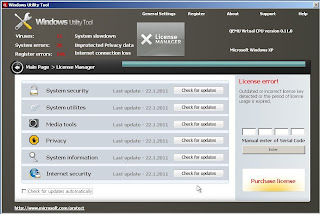

Windows User Satellite clone of Windows Utility Tool


While WindowsUserSatellite is running, it will display various misleading notifications and fake security alerts from Windows taskbar. Some of the alerts are:

Microsoft Security Essentials Alert
Potential Threat Details
Microsoft Security Essentials detected potential threats that might compromise your private or damage your computer. Your access to these items may be suspended until you take an action. Click ‘show details’ to learn more.
Warning!
Name: taskmgr.exe
Name: C:WINDOWStaskmgr.exe
Application that seems to be a key-logger is detected. System information security is at risk. It is recommended to enable the security mode and run total System scanning.

However, all of these alerts and notifications is a fake and like false scan result should be ignored.

Windows User Satellite is absolutely useless and what is more, even dangerous software. Most importantly, do not purchase it! Instead, please use the Windows User Satellite virus removal guide or the instructions below to remove this malware from your computer for free.

How to remove Windows User Satellite


Reboot your computer. When you will see a WindowsUserSatellite prompt, click OK and wait while it`s scanning your computer, Once the scan is complete click "OK, Open the license manager" button. Now you can close the rogue, Press ATL+F4 or "X" button at the top-right of Windows User Satellite.

Click Start, type in search field
%APPDATA%
Press Enter,

It will open a contents of ProgramData folder (Application Data for WINDOWS XP). Now look for randomly named files, e.g lklklka.exe or lklklka, and rename them. Reboot your computer.

Download Malwarebytes Anti-malware. Double click mbam-setup.exe to install the application. When installation is complete, make sure a checkmark is placed next to Update Malwarebytes' Anti-Malware and Launch Malwarebytes' Anti-Malware, then click Finish. If an update is found, it will download and install the latest version.

Once the program has loaded you will see a screen like below.

Malwarebytes' Anti-Malware

Select "Perform Quick Scan", then click Scan. When the scan is done, click OK, then Show Results to view the results. You will see a list of malware that  Malwarebytes' Anti-Malware found on your computer. Note: list of malware may be different than what is shown in the screen below.

Malwarebytes' Anti-Malware - lists of malicious software

Make sure that everything is checked, and click Remove Selected. Once disinfection is finished, a log will open in Notepad and you may be prompted to Restart.

Note: if you can`t download or run these suggested program above, boot your computer in Safe mode with networking and repeat the above steps once again.

If the instructions does not help you, then ask for help in the Spyware removal forum.

Sunday, February 13, 2011

Remove Windows Optimal Settings virus

Windows Optimal Settings is a new fake security program, clone of Windows Utility Tool. It can not remove viruses and trojans, as well as protect your computer from possible infections. This parasite is created with one purpose, to force you to buy its full version.

What Windows Optimal Settings does


Windows Optimal Settings is promoted and distributed through the use of Microsoft Security Essentials Alert trojan. When the rogue is installed, it will register itself in the Windows registry to run automatically. Further, the program will begin a system scan and list a lot of trojans, viruses and other malicious programs. Of course, the scan and its results are a fake. The rogue uses the false scan results as method to trick you into purchase the full version of this program. So you can freely ignore all that Windows Optimal Settings will show you.


Windows Optimal Settings clone of Windows Utility Tool


While WindowsOptimalSettings is running, it will display various misleading notifications and fake security alerts from Windows taskbar. Some of the alerts are:

Microsoft Security Essentials Alert
Potential Threat Details
Microsoft Security Essentials detected potential threats that might compromise your private or damage your computer. Your access to these items may be suspended until you take an action. Click ‘show details’ to learn more.
Warning!
Name: taskmgr.exe
Name: C:WINDOWStaskmgr.exe
Application that seems to be a key-logger is detected. System information security is at risk. It is recommended to enable the security mode and run total System scanning.

However, all of these alerts and notifications is a fake and like false scan result should be ignored.

Windows Optimal Settings is absolutely useless and what is more, even dangerous software. Most importantly, do not purchase it! Instead, please use the Windows Optimal Settings virus removal guide or the instructions below to remove this malware from your computer for free.

How to remove Windows Optimal Settings


Reboot your computer. When you will see a Windows Optimal Settings prompt, click OK and wait while it`s scanning your computer, Once the scan is complete click "OK, Open the license manager" button. Now you can close the rogue, Press ATL+F4 or "X" button at the top-right of Windows Optimal Settings.

Click Start, type in search field
%APPDATA%
Press Enter,

It will open a contents of ProgramData folder (Application Data for WINDOWS XP). Now look for randomly named files, e.g lklklka.exe or lklklka, and rename them. Reboot your computer.

Download Malwarebytes Anti-malware. Double click mbam-setup.exe to install the application. When installation is complete, make sure a checkmark is placed next to Update Malwarebytes' Anti-Malware and Launch Malwarebytes' Anti-Malware, then click Finish. If an update is found, it will download and install the latest version.

Once the program has loaded you will see a screen like below.

Malwarebytes' Anti-Malware

Select "Perform Quick Scan", then click Scan. When the scan is done, click OK, then Show Results to view the results. You will see a list of malware that  Malwarebytes' Anti-Malware found on your computer. Note: list of malware may be different than what is shown in the screen below.

Malwarebytes' Anti-Malware - lists of malicious software

Make sure that everything is checked, and click Remove Selected. Once disinfection is finished, a log will open in Notepad and you may be prompted to Restart.

Note: if you can`t download or run these suggested program above, boot your computer in Safe mode with networking and repeat the above steps once again.

If the instructions does not help you, then ask for help in the Spyware removal forum.
Friday, February 11, 2011

Remove Security Defender virus

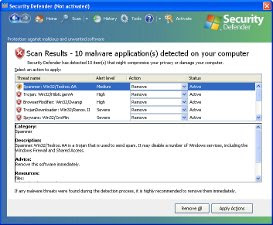
Security Defender is a new fake security program that pretend to be a virus and malware removal tool, but unlike it, can not detect and remove any infections. This malware is created with one purpose, to trick you into purchasing so-called full version.

What Security Defender does


Security Defender infiltrate computers through the use of trojans. When the program is installed, it configures itself to run every time when you start Windows.

Once started, Security Defender will imitate a scan and list a lot of infected files. It states that your computer is infected with adware, trojans, worms or malware and that you should purchase SecurityDefender to remove these infections. Obviously, such results are a fraud, the program want to scare you into thinking that your computer is infected with malicious software.


While Security Defender is running, it will display various misleading alerts, nag screens and notifications. Of course, all of these alerts and notifications are a fake and like a fake scan should be ignored.

As you can see, Security Defender is absolutely useless and what is more, even dangerous software. Most importantly, do not purchase anything that it will suggest you! Instead, please use the Security Defender virus removal guide or the instructions below to remove this malware from your computer for free.


How to remove Security Defender


Download Malwarebytes Anti-malware. Double click mbam-setup.exe to install the application. When installation is complete, make sure a checkmark is placed next to Update Malwarebytes' Anti-Malware and Launch Malwarebytes' Anti-Malware, then click Finish. If an update is found, it will download and install the latest version.

Once the program has loaded you will see a screen like below.

Malwarebytes' Anti-Malware

Select "Perform Quick Scan", then click Scan. When the scan is done, click OK, then Show Results to view the results. You will see a list of malware that  Malwarebytes' Anti-Malware found on your computer. Note: list of malware may be different than what is shown in the screen below.

Malwarebytes' Anti-Malware - lists of malicious software


Make sure that everything is checked, and click Remove Selected. Once disinfection is finished, a log will open in Notepad and you may be prompted to Restart.

Note: if you can`t download or run these suggested program above, boot your computer in Safe mode with networking and repeat the above steps once again.

If the instructions does not help you, then ask for help in the Spyware removal forum.

Wednesday, February 9, 2011

Remove AntiVira Av virus

AntiVira Av is a new fake antivirus program. The misleading application is a clone of Antivirus Scan malware. This malware reports false infections and displays a lot of fake security alerts in order to trick you into purchasing its so-called full version.

HijackThis shows AntiVira Av infection:

O4 – HKCU\..\Run: [{RANDOM}] %Temp%\{RANDOM}\{RANDOM}.exe

What AntiVira Av does

AntiVira Av is distributed with through the use of trojans that come from various misleading websites. When the trojan is started, it will install this malware. On first run, AntiVira Av configures itself to start automatically when Windows loads. Next, the fake antivirus will simulate a system scan and list a lot of false infections that actually does not exist!


AntiVira Av will state that your computer is infected with adware, trojans, worms or malware with one purpose - to scare you into thinking that your PC in danger. Obviously, such results are a fraud, so you can freely ignore them.

While AntiVira Av is running, it will flood your computer with fake security alert and notifications from Windows task bar. Moreover, the rogue will disable Task Manager and hijack Internet Explorer so, that it will display a misleading notification that states - "Internet Explorer Warning – visiting this web site may harm your computer!". Of course, all of these alerts and messages are a fake and like false scan results should be ignored.

Remember, AntiVira Av is absolutely useless and what is more, even dangerous software. Most importantly, do not purchase it. Instead, please use the AntiVira Av virus removal guide in order to remove this malware from your computer for free.

Tuesday, February 8, 2011

Remove Windows Software Guard virus

Windows Software Guard is a new rogue antivirus software, clone of Windows Utility Tool. Both application share the same GUI, features, just have the different names. Important to know, the program can not remove viruses and trojans, as well as protect your computer from possible infections. This parasite is created with one purpose, to force you to buy its full version.

What Windows Software Guard does

Windows Software Guard is promoted and distributed via Microsoft Security Essentials Alert trojan. When the rogue is installed, it will register itself in the Windows registry to run automatically. Further, the program will begin a system scan and list a lot of trojans, viruses and other malicious programs. However, do not be convinced and do not get trapped because the rogue uses the false scan results as method to trick you into purchase the full version of this program. So you can freely ignore all that Windows Shield Center will show you.


Windows Software Guard clone of Windows Utility Tool


While Windows Software Guard is running, it will display various misleading notifications and fake security alerts from Windows taskbar. Some of the alerts are:

Microsoft Security Essentials Alert
Potential Threat Details
Microsoft Security Essentials detected potential threats that might compromise your private or damage your computer. Your access to these items may be suspended until you take an action. Click ‘show details’ to learn more.
Warning!
Name: taskmgr.exe
Name: C:WINDOWStaskmgr.exe
Application that seems to be a key-logger is detected. System information security is at risk. It is recommended to enable the security mode and run total System scanning.


However, all of these alerts and notifications is a fake and like false scan result should be ignored.

Windows Software Guard is absolutely useless and what is more, even dangerous software. Most importantly, do not purchase it! Instead, please use the Windows Software Guard virus removal guide or the instructions below to remove this malware from your computer for free.

How to remove Windows Software Guard


Reboot your computer. When you will see a Windows Software Guard prompt, click OK and wait while it`s scanning your computer, Once the scan is complete click "OK, Open the license manager" button. Now you can close the rogue, Press ATL+F4 or "X" button at the top-right of Windows Shield Center.

Click Start, type in search field
%APPDATA%
Press Enter,

It will open a contents of ProgramData folder (Application Data for WINDOWS XP). Now look for randomly named files, e.g aklklka.exe or aklklka, and rename them. Reboot your computer.

Download Malwarebytes Anti-malware. Double click mbam-setup.exe to install the application. When installation is complete, make sure a checkmark is placed next to Update Malwarebytes' Anti-Malware and Launch Malwarebytes' Anti-Malware, then click Finish. If an update is found, it will download and install the latest version.

Once the program has loaded you will see a screen like below.

Malwarebytes' Anti-Malware

Select "Perform Quick Scan", then click Scan. When the scan is done, click OK, then Show Results to view the results. You will see a list of malware that  Malwarebytes' Anti-Malware found on your computer. Note: list of malware may be different than what is shown in the screen below.

Malwarebytes' Anti-Malware - lists of malicious software

Make sure that everything is checked, and click Remove Selected. Once disinfection is finished, a log will open in Notepad and you may be prompted to Restart.

Note: if you can`t download or run these suggested program above, boot your computer in Safe mode with networking and repeat the above steps once again.

If the instructions does not help you, then ask for help in the Spyware removal forum.

Windows Software Guard associated files:
%AppData%\{RANDOM}.exe

Saturday, February 5, 2011

Remove Disk Recovery virus

Disk Recovery is a fake computer optimization software that displays false information that your computer has a lot of critical problems with hard disks, memory, etc. It "detects" these problems in order to trick you into purchasing so-called full version of the software.

Like other malicious programs from the same family of fake optimization tools, Disk Recovery can be installed without you noticing that, through the use of trojans. It does not require your agreement!

If you will attempt to scan your computer with Disk Recovery, it will detect 11 critical errors. Remember, the scan results are a fake, this malware is unable to detect any problems. So you should never trust this fake application and ignore all that it will display you.


While Disk Recovery is running, it will display various fake warnings. Some of the warnings:

Critical Error! RAM memory usage is critically high. RAM memory failure.
Critical Error! Hard Drive not found. Missing hard drive.
Critical Error! Windows can't find hard disk space. Hard drive error
Critical Error! Damaged hard drive clusters detected. Private data is at risk.

As you can see, DiskRecovery pretends to be a legitimate PC optimization tool but, in reality, it is a scam. You should remove this malware as soon as you notice it installed on the system. Follow the Disk Recovery removal instructions.

Disk Recovery associated files:
%UserProfile%\Desktop\Disk Recovery.lnk
%UserProfile%\Start Menu\Programs\Disk Recovery\
%UserProfile%\Start Menu\Programs\Disk Recovery\Disk Recovery.lnk
%UserProfile%\Start Menu\Programs\Disk Recovery\Uninstall Disk Recovery.lnk
%Temp%\[RANDOM NUMBERS]
%Temp%\[RANDOM NUMBERS].exe
%Temp%\dfrg
%Temp%\dfrgr
%Temp%\[RANDOM CHARACTERS].dll

Friday, February 4, 2011

Remove Win Disk or WinDisk Virus

Win Disk is a fake defragmenter and computer optimization software. The program is installed onto your computer with the help of trojans through system holes that insecure. Moreover, WinDisk might come together with some malicious application.


Screenshoot of Win Disk

As soon as WinDisk is installed on your computer, it starts scaring you by throwing fake alerts on the screen. Some of the alerts are:

Critical Error! RAM memory usage is critically high. RAM memory failure.
Critical Error! Hard Drive not found. Missing hard drive.
Critical Error! Windows can't find hard disk space. Hard drive error.
Critical Error! Damaged hard drive clusters detected. Private data is at risk.
What is more, Win Disk will imitate a system scan and detect 11 critical errors on your computer. Remember that you should never trust this fake application and ignore all that it will display you.

As you can see, WinDisk pretends to be a legitimate PC optimization tool but in reality is totally scam. You should remove it as soon as you notice it installed on the system. Follow the Win Disk virus removal instructions.

Win Disk associated files:
%UserProfile%\Desktop\Win Disk.lnk
%UserProfile%\Start Menu\Programs\Win Disk\
%UserProfile%\Start Menu\Programs\Win Disk\Win Disk.lnk
%UserProfile%\Start Menu\Programs\Win Disk\Uninstall Win Disk.lnk
%Temp%\[RANDOM NUMBERS]
%Temp%\[RANDOM NUMBERS].exe
%Temp%\dfrg
%Temp%\dfrgr
%Temp%\[RANDOM CHARACTERS].dll
%UserProfile%\GDIPFONTCACHEV1.DAT