System Protection Tools is a rogue anti-spyware from the same
family of rogues as Strong Malware Defender, Antivirus Smart Protection, etc. The program
pretends to be a legitimate antivirus software but, in reality, it can
not remove viruses, trojans, etc., nor will be protect your computer
from legitimate future infections. System Protection Tools is
created with one purpose to trick you into purchasing the full version
of the software. So, don`t trust anything relate to this software and
remove the fake antivirus as soon as possible.
Showing posts with label Virus Doctor family. Show all posts
Showing posts with label Virus Doctor family. Show all posts
Wednesday, May 23, 2012

Saturday, February 25, 2012
Remove Strong Malware Defender virus
Strong Malware Defender is another fake antivirus software. It reports false infections and displays a lot of fake security
messages in order to trick you into purchasing its so-called full
version. So, don`t trust anything that this software will say you and
uninstall it as soon as possible.
Wednesday, January 25, 2012
Remove Antivirus Smart Protection virus
Antivirus Smart Protection is a rogue anti-spyware from the same family of rogues as Home Security Solutions, PC Security Guardian, Best Malware Protection, Internet Antivirus 2011, etc. The program pretends to be a legitimate antivirus software but, in reality, it can not remove viruses, trojans, etc., nor will be protect your computer from legitimate future infections. Antivirus Smart Protection is created with one purpose to trick you into purchasing the full version of the software. So, don`t trust anything relate to this software and remove the fake antivirus as soon as possible.
Wednesday, July 6, 2011
Remove Anti-Malware Lab virus
Anti-Malware Lab is a rogue anti-spyware from the same family of rogues as PC Security Guardian, Best Malware Protection, Internet Antivirus 2011, etc. The program pretends to be a legitimate antivirus software but, in reality, it can not remove viruses, trojans, etc., nor will be protect your computer from legitimate future infections. Anti-Malware Lab is created with one purpose to trick you into purchasing the full version of the software. So, don`t trust anything relate to this software and remove the fake antivirus as soon as possible.
Thursday, May 5, 2011
Remove PC Security Guardian virus
PC Security Guardian is a fake security program from the same family of rogues as Best Malware Protection, Internet Antivirus 2011, etc. The program pretends to be a legitimate antivirus software but, in reality, it can not remove viruses, trojans, etc., nor will be protect your computer from legitimate future infections. PC Security Guardian is created with one purpose to trick you into purchasing the full version of the software.
PC Security Guardian is promoted and installed with the help of trojans. When the trojan is started, it will download and install the rogue onto your computer.
During installation, PC Security Guardian will be configured to run automatically every time when your computer starts. After that, it will create several files on your computer, which later, during the scan, will detect as infections. These fake infections can only be removed with a full version of the program.
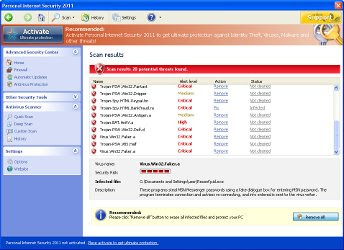
Obviously, such results are a fraud, the program want to scare you into thinking that your computer is infected with malicious software.
While PC Security Guardian is running, it will flood your computer with fake security alerts and notifications from Windows task bar. Some of the fake alerts are:
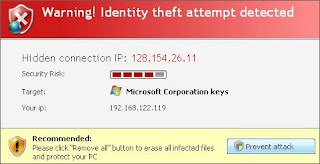

However, all the alerts are totally fabricated and must by no means be trusted! You can safety ignore them.
Last, but not least, the rogue will disable Task Manager, block antivirus and antispyware tools from running.
As you can see, PC Security Guardian is absolutely useless and what is more, even dangerous software. Most importantly, do not purchase it. Instead, please use the PC Security Guardian removal instructions or the steps below to remove this malware from your computer for free.
2. Run Internet Explorer, Click Tools and select Internet Options. Select Connections Tab and click to Lan Settings button.
3. Uncheck “Use a proxy server” box. Click OK and click OK again.
4. Download Malwarebytes Anti-malware. Double click mbam-setup.exe to install the application. When installation is complete, make sure a checkmark is placed next to Update Malwarebytes' Anti-Malware and Launch Malwarebytes' Anti-Malware, then click Finish. If an update is found, it will download and install the latest version.
5. Once the program has loaded you will see a screen like below.

6. Select "Perform Quick Scan", then click Scan. When the scan is done, click OK, then Show Results to view the results. You will see a list of malware that Malwarebytes' Anti-Malware found on your computer. Note: list of malware may be different than what is shown in the screen below.

7. Make sure that everything is checked, and click Remove Selected. Once disinfection is finished, a log will open in Notepad and you may be prompted to Restart.
8. Download OTM by OldTimer from here and save it to your desktop.
9. Run OTM, then paste the following text in “Paste Instructions for Items to be Moved” window (under the yellow bar):
If the instructions does not help you, then ask for help in the Spyware removal forum.
HijackThis shows PC Security Guardian infection
O4 – HKCU\..\Run: [ PC Security Guardian] “C:\Documents and Settings\All Users\Application Data\0ab12\AB123.exe” /s /dWhat PC Security Guardian does
PC Security Guardian is promoted and installed with the help of trojans. When the trojan is started, it will download and install the rogue onto your computer.
During installation, PC Security Guardian will be configured to run automatically every time when your computer starts. After that, it will create several files on your computer, which later, during the scan, will detect as infections. These fake infections can only be removed with a full version of the program.
Obviously, such results are a fraud, the program want to scare you into thinking that your computer is infected with malicious software.
While PC Security Guardian is running, it will flood your computer with fake security alerts and notifications from Windows task bar. Some of the fake alerts are:
Warning! Identity theft attempt detected
Hidden connection IP: 128.154.26.11
Target: Microsoft Corporation keys

Warning
Warning! Virus detected

However, all the alerts are totally fabricated and must by no means be trusted! You can safety ignore them.
Last, but not least, the rogue will disable Task Manager, block antivirus and antispyware tools from running.
As you can see, PC Security Guardian is absolutely useless and what is more, even dangerous software. Most importantly, do not purchase it. Instead, please use the PC Security Guardian removal instructions or the steps below to remove this malware from your computer for free.
PC Security Guardian removal steps
1. Reboot your computer in Safe mode with networking.2. Run Internet Explorer, Click Tools and select Internet Options. Select Connections Tab and click to Lan Settings button.
3. Uncheck “Use a proxy server” box. Click OK and click OK again.
4. Download Malwarebytes Anti-malware. Double click mbam-setup.exe to install the application. When installation is complete, make sure a checkmark is placed next to Update Malwarebytes' Anti-Malware and Launch Malwarebytes' Anti-Malware, then click Finish. If an update is found, it will download and install the latest version.
5. Once the program has loaded you will see a screen like below.

Malwarebytes' Anti-Malware
6. Select "Perform Quick Scan", then click Scan. When the scan is done, click OK, then Show Results to view the results. You will see a list of malware that Malwarebytes' Anti-Malware found on your computer. Note: list of malware may be different than what is shown in the screen below.

Malwarebytes' Anti-Malware - lists of malicious software
7. Make sure that everything is checked, and click Remove Selected. Once disinfection is finished, a log will open in Notepad and you may be prompted to Restart.
8. Download OTM by OldTimer from here and save it to your desktop.
9. Run OTM, then paste the following text in “Paste Instructions for Items to be Moved” window (under the yellow bar):
:Commands10. Click the red Moveit! button. Close OTM.
[resethosts]
If the instructions does not help you, then ask for help in the Spyware removal forum.
Monday, February 21, 2011
Remove Internet Security Essentials virus
Internet Security Essentials is a new fake security program from the same family of rogues as Personal Internet Security 2011, Internet Antivirus 2011, Smart Engine, Smart Security , My Security Shield, Security Master AV, etc. It looks like a real security application, but unlike it, can not remove viruses and trojans, as well as protect your computer from possible infections. This parasite is created with one purpose, to force you to buy its full version.
Internet Security Essentials infiltrate computers through the use of trojans. When the trojan is started, it will download and install the rogue onto your computer.
When Internet Security Essentials is installed, it will register itself in the Windows registry to run automatically. Further, the program will begin a system scan and list a lot of trojans, viruses and other malicious programs. Of course, the scan and its results are a fake. The rogue uses the false scan results as method to trick you into purchase the full version of this program. So you can freely ignore all that Internet Security Essentials will show you.

While Internet Security Essentials is running, it will display various misleading notifications and fake security alerts from Windows taskbar. However, all of these alerts and notifications is a fake and like false scan result should be ignored.
What is more, Internet Security Essentials can block Windows task manager and the work of antivirus software, redirect you to the malicious web sites, and much more.
As you can see, Internet Security Essentials is absolutely useless and what is more, even dangerous software. Most importantly, do not purchase it! Instead, please use the Internet Security Essentials removal guide or the instructions below to remove this malware from your computer for free.
2. Run Internet Explorer, Click Tools and select Internet Options. Select Connections Tab and click to Lan Settings button.
3. Uncheck “Use a proxy server” box. Click OK and click OK again.
4. Download Malwarebytes Anti-malware. Double click mbam-setup.exe to install the application. When installation is complete, make sure a checkmark is placed next to Update Malwarebytes' Anti-Malware and Launch Malwarebytes' Anti-Malware, then click Finish. If an update is found, it will download and install the latest version.
5. Once the program has loaded you will see a screen like below.
6. Select "Perform Quick Scan", then click Scan. When the scan is done, click OK, then Show Results to view the results. You will see a list of malware that Malwarebytes' Anti-Malware found on your computer. Note: list of malware may be different than what is shown in the screen below.
7. Make sure that everything is checked, and click Remove Selected. Once disinfection is finished, a log will open in Notepad and you may be prompted to Restart.
8. Download OTM by OldTimer from here and save it to your desktop.
9. Run OTM, then paste the following text in “Paste Instructions for Items to be Moved” window (under the yellow bar):
If the instructions does not help you, then ask for help in the Spyware removal forum.
HijackThis shows Internet Security Essentials infection:
O4 – HKCU\..\Run: [Internet Security Essentials] “C:\Documents and Settings\All Users\Application Data\0ab12\AB123.exe” /s /dWhat Internet Security Essentials does
Internet Security Essentials infiltrate computers through the use of trojans. When the trojan is started, it will download and install the rogue onto your computer.
When Internet Security Essentials is installed, it will register itself in the Windows registry to run automatically. Further, the program will begin a system scan and list a lot of trojans, viruses and other malicious programs. Of course, the scan and its results are a fake. The rogue uses the false scan results as method to trick you into purchase the full version of this program. So you can freely ignore all that Internet Security Essentials will show you.
Screen shoot of Internet Security Essentials from Siri-urz blog
While Internet Security Essentials is running, it will display various misleading notifications and fake security alerts from Windows taskbar. However, all of these alerts and notifications is a fake and like false scan result should be ignored.
What is more, Internet Security Essentials can block Windows task manager and the work of antivirus software, redirect you to the malicious web sites, and much more.
As you can see, Internet Security Essentials is absolutely useless and what is more, even dangerous software. Most importantly, do not purchase it! Instead, please use the Internet Security Essentials removal guide or the instructions below to remove this malware from your computer for free.
How to remove Internet Security Essentials
1. Reboot your computer in Safe mode with networking.2. Run Internet Explorer, Click Tools and select Internet Options. Select Connections Tab and click to Lan Settings button.
3. Uncheck “Use a proxy server” box. Click OK and click OK again.
4. Download Malwarebytes Anti-malware. Double click mbam-setup.exe to install the application. When installation is complete, make sure a checkmark is placed next to Update Malwarebytes' Anti-Malware and Launch Malwarebytes' Anti-Malware, then click Finish. If an update is found, it will download and install the latest version.
5. Once the program has loaded you will see a screen like below.
Malwarebytes' Anti-Malware
6. Select "Perform Quick Scan", then click Scan. When the scan is done, click OK, then Show Results to view the results. You will see a list of malware that Malwarebytes' Anti-Malware found on your computer. Note: list of malware may be different than what is shown in the screen below.
Malwarebytes' Anti-Malware - lists of malicious software
7. Make sure that everything is checked, and click Remove Selected. Once disinfection is finished, a log will open in Notepad and you may be prompted to Restart.
8. Download OTM by OldTimer from here and save it to your desktop.
9. Run OTM, then paste the following text in “Paste Instructions for Items to be Moved” window (under the yellow bar):
:Commands10. Click the red Moveit! button. Close OTM.
[resethosts]
If the instructions does not help you, then ask for help in the Spyware removal forum.
Wednesday, December 29, 2010
Remove Personal Internet Security 2011 virus (Uninstall guide)
Personal Internet Security 2011 is a fake security program that pretends to be an antivirus tool. This malware from the same family of rogues as Internet Antivirus 2011, Smart Engine, Smart Security , My Security Shield, Security Master AV, etc. The program looks like a normal antivirus but, in reality, it can not remove viruses, trojans, etc., nor will be protect your computer from legitimate future infections. Personal Internet Security 2011 is created with one purpose to trick you into purchasing the full version of the software.
Personal Internet Security 2011 is promoted and installed with the help of trojans. When the trojan is started, it will download and install the rogue onto your computer.
During installation, Personal Internet Security 2011 will be configured to run automatically every time when your computer starts. After that, it will create several files on your computer, which later, during the scan, will detect as infections. These fake infections can only be removed with a full version of the program.
Obviously, such results are a fraud, the program want to scare you into thinking that your computer is infected with malicious software.
While Personal Internet Security 2011 is running, it will flood your computer with fake security alerts and notifications from Windows task bar. Some of the fake alerts are:
However, all the alerts are totally fabricated and must by no means be trusted!
Last, but not least, the rogue will disable Task Manager, block antivirus and antispyware tools from running.
As you can see, Personal Internet Security 2011 is absolutely useless and what is more, even dangerous software. Most importantly, do not purchase it. Instead, please use the Personal Internet Security 2011 removal instructions or the steps below to remove this malware from your computer for free.
2. Run Internet Explorer, Click Tools and select Internet Options. Select Connections Tab and click to Lan Settings button.
3. Uncheck “Use a proxy server” box. Click OK and click OK again.
4. Download Malwarebytes Anti-malware. Double click mbam-setup.exe to install the application. When installation is complete, make sure a checkmark is placed next to Update Malwarebytes' Anti-Malware and Launch Malwarebytes' Anti-Malware, then click Finish. If an update is found, it will download and install the latest version.
5. Once the program has loaded you will see a screen like below.
6. Select "Perform Quick Scan", then click Scan. When the scan is done, click OK, then Show Results to view the results. You will see a list of malware that Malwarebytes' Anti-Malware found on your computer. Note: list of malware may be different than what is shown in the screen below.
7. Make sure that everything is checked, and click Remove Selected. Once disinfection is finished, a log will open in Notepad and you may be prompted to Restart.
8. Download OTM by OldTimer from here and save it to your desktop.
9. Run OTM, then paste the following text in “Paste Instructions for Items to be Moved” window (under the yellow bar):
If the instructions does not help you, then ask for help in the Spyware removal forum.
Personal Internet Security 2011 is promoted and installed with the help of trojans. When the trojan is started, it will download and install the rogue onto your computer.
During installation, Personal Internet Security 2011 will be configured to run automatically every time when your computer starts. After that, it will create several files on your computer, which later, during the scan, will detect as infections. These fake infections can only be removed with a full version of the program.
Obviously, such results are a fraud, the program want to scare you into thinking that your computer is infected with malicious software.
While Personal Internet Security 2011 is running, it will flood your computer with fake security alerts and notifications from Windows task bar. Some of the fake alerts are:
Warning! Identity theft attempt detected
Hidden connection IP: 128.154.26.11
Target: Microsoft Corporation keys
Warning
Warning! Virus detected
However, all the alerts are totally fabricated and must by no means be trusted!
Last, but not least, the rogue will disable Task Manager, block antivirus and antispyware tools from running.
As you can see, Personal Internet Security 2011 is absolutely useless and what is more, even dangerous software. Most importantly, do not purchase it. Instead, please use the Personal Internet Security 2011 removal instructions or the steps below to remove this malware from your computer for free.
HijackThis shows Personal Internet Security 2011 infection:
O4 – HKCU\..\Run: [Personal Internet Security 2011] “C:\Documents and Settings\All Users\Application Data\da2933\BCda2_2121.exe” /s /dPersonal Internet Security 2011 removal steps
1. Reboot your computer in Safe mode with networking.2. Run Internet Explorer, Click Tools and select Internet Options. Select Connections Tab and click to Lan Settings button.
3. Uncheck “Use a proxy server” box. Click OK and click OK again.
4. Download Malwarebytes Anti-malware. Double click mbam-setup.exe to install the application. When installation is complete, make sure a checkmark is placed next to Update Malwarebytes' Anti-Malware and Launch Malwarebytes' Anti-Malware, then click Finish. If an update is found, it will download and install the latest version.
5. Once the program has loaded you will see a screen like below.
Malwarebytes' Anti-Malware
6. Select "Perform Quick Scan", then click Scan. When the scan is done, click OK, then Show Results to view the results. You will see a list of malware that Malwarebytes' Anti-Malware found on your computer. Note: list of malware may be different than what is shown in the screen below.
Malwarebytes' Anti-Malware - lists of malicious software
7. Make sure that everything is checked, and click Remove Selected. Once disinfection is finished, a log will open in Notepad and you may be prompted to Restart.
8. Download OTM by OldTimer from here and save it to your desktop.
9. Run OTM, then paste the following text in “Paste Instructions for Items to be Moved” window (under the yellow bar):
Commands10. Click the red Moveit! button. Close OTM.
[resethosts]
If the instructions does not help you, then ask for help in the Spyware removal forum.
Sunday, October 10, 2010
Remove Smart Engine (Removal guide)
Smart Engine is a new rogue antivirus application from the same family of malware as Smart Security , My Security Shield, Security Master AV, etc.
Smart Engine is promoted and installed via trojans. When the trojan is started, it will download and install the rogue onto your computer.
During installation, Smart Engine will configure itself to run automatically every time when your computer starts. After that, it will create several files on your computer, which later, during the scan, will detect as infections. These fake infections can only be removed with a full version of the program.

Obviously, such results are a fraud, the program want to scare you into thinking that your computer is infected with malicious software.
While Smart Engine is running, it will flood your computer with fake security alerts and notifications from Windows task bar. Some of the fake alerts are:
However, all the alerts are totally fabricated and must by no means be trusted!
Last, but not least, the rogue will disable Task Manager, block antivirus and antispyware tools from running.
As you can see, Smart Engine is absolutely useless and what is more, even dangerous software. Most importantly, do not purchase it. Instead, please use the Smart Engine removal instructions or the steps below to remove Smart Engine from your computer for free.
2. Run Internet Explorer, Click Tools and select Internet Options. Select Connections Tab and click to Lan Settings button.
3. Uncheck “Use a proxy server” box. Click OK and click OK again.
4. Download Malwarebytes Anti-malware. Double click mbam-setup.exe to install the application. When installation is complete, make sure a checkmark is placed next to Update Malwarebytes' Anti-Malware and Launch Malwarebytes' Anti-Malware, then click Finish. If an update is found, it will download and install the latest version.
5. Once the program has loaded you will see a screen like below.
6. Select "Perform Quick Scan", then click Scan. When the scan is done, click OK, then Show Results to view the results. You will see a list of malware that Malwarebytes' Anti-Malware found on your computer. Note: list of malware may be different than what is shown in the screen below.
7. Make sure that everything is checked, and click Remove Selected. Once disinfection is finished, a log will open in Notepad and you may be prompted to Restart.
8. Download OTM by OldTimer from here and save it to your desktop.
9. Run OTM, then paste the following text in “Paste Instructions for Items to be Moved” window (under the yellow bar):
If the instructions does not help you, then ask for help in the Spyware removal forum.
HijackThis shows Smart Engine infection:
O4 – HKCU\..\Run: [Smart Engine] “C:\Documents and Settings\All Users\Application Data\da2933\SMda2_2121.exe” /s /dWhat Smart Engine does
Smart Engine is not a legitimate security tool. It looks like a normal antivirus, but in reality, this program can not remove viruses, trojans, etc., nor will be protect your computer from legitimate future infections. Smart Engine created with one purpose to trick you into purchasing the full version of the software.Smart Engine is promoted and installed via trojans. When the trojan is started, it will download and install the rogue onto your computer.
During installation, Smart Engine will configure itself to run automatically every time when your computer starts. After that, it will create several files on your computer, which later, during the scan, will detect as infections. These fake infections can only be removed with a full version of the program.

Obviously, such results are a fraud, the program want to scare you into thinking that your computer is infected with malicious software.
While Smart Engine is running, it will flood your computer with fake security alerts and notifications from Windows task bar. Some of the fake alerts are:
Warning! Identity theft attempt detected
Hidden connection IP: 128.154.26.11
Target: Microsoft Corporation keys
Warning
Warning! Virus detected
However, all the alerts are totally fabricated and must by no means be trusted!
Last, but not least, the rogue will disable Task Manager, block antivirus and antispyware tools from running.
As you can see, Smart Engine is absolutely useless and what is more, even dangerous software. Most importantly, do not purchase it. Instead, please use the Smart Engine removal instructions or the steps below to remove Smart Engine from your computer for free.
Smart Engine removal steps
1. Reboot your computer in Safe mode with networking.2. Run Internet Explorer, Click Tools and select Internet Options. Select Connections Tab and click to Lan Settings button.
3. Uncheck “Use a proxy server” box. Click OK and click OK again.
4. Download Malwarebytes Anti-malware. Double click mbam-setup.exe to install the application. When installation is complete, make sure a checkmark is placed next to Update Malwarebytes' Anti-Malware and Launch Malwarebytes' Anti-Malware, then click Finish. If an update is found, it will download and install the latest version.
5. Once the program has loaded you will see a screen like below.
Malwarebytes' Anti-Malware
6. Select "Perform Quick Scan", then click Scan. When the scan is done, click OK, then Show Results to view the results. You will see a list of malware that Malwarebytes' Anti-Malware found on your computer. Note: list of malware may be different than what is shown in the screen below.
Malwarebytes' Anti-Malware - lists of malicious software
7. Make sure that everything is checked, and click Remove Selected. Once disinfection is finished, a log will open in Notepad and you may be prompted to Restart.
8. Download OTM by OldTimer from here and save it to your desktop.
9. Run OTM, then paste the following text in “Paste Instructions for Items to be Moved” window (under the yellow bar):
Commands10. Click the red Moveit! button. Close OTM.
[resethosts]
If the instructions does not help you, then ask for help in the Spyware removal forum.
Thursday, August 5, 2010
How to remove My Security Shield rogue antispyware
My Security Shield is a new rogue antispyware from the same family of rogues as Security Master AV, My Security Engine, etc.

During installation, My Security Shield will configure itself to run automatically every time when your computer starts. After that, it will create several files on your computer, which later, during the scan, will detect as infections. These fake infection can only be removed with a full version of the program. Obviously, such results are a fraud, the program want to scare you into thinking that your computer is infected with malicious software.
While My Security Shield is running, it will flood your computer with fake security alert and notifications from Windows task bar. Furthermore, the rogue may disable Task Manager, block antivirus and antispyware tools from running and hijack Internet Explorer so, that it will display various misleading notifications.
As you can see, My Security Shield is absolutely useless and what is more, even dangerous software. Most importantly, do not purchase it. Instead, please use the My Security Shield removal guide or the steps below to remove this malware from your computer for free.
Download Malwarebytes Anti-malware. Double click mbam-setup.exe to install the application. When installation is complete, make sure a checkmark is placed next to Update Malwarebytes' Anti-Malware and Launch Malwarebytes' Anti-Malware, then click Finish. If an update is found, it will download and install the latest version.
Once the program has loaded you will see a screen like below.
Select "Perform Quick Scan", then click Scan. When the scan is done, click OK, then Show Results to view the results. You will see a list of malware that Malwarebytes' Anti-Malware found on your computer. Note: list of malware may be different than what is shown in the screen below.
Make sure that everything is checked, and click Remove Selected. Once disinfection is finished, a log will open in Notepad and you may be prompted to Restart.
Note: if you can`t download or run these suggested program above, boot your computer in Safe mode with networking and repeat the above steps once again.
If the instructions does not help you, then ask for help in the Spyware removal forum.
HijackThis shows My Security Shield infection:
O4 – HKCU\..\Run: [My Security Shield] “C:\Documents and Settings\All Users\Application Data\ab123c34\MS567.exe”What My Security Shield does
My Security Shield is not a legitimate security tool. It looks like a normal antispyware tool, but in reality, this program can not remove viruses, trojans, etc., nor will be protect your computer from legitimate future infections. My Security Shield created with one purpose to trick you into purchasing the full version of the software.Screen shoot of My Security Shield from S!Ri.URZ blog
During installation, My Security Shield will configure itself to run automatically every time when your computer starts. After that, it will create several files on your computer, which later, during the scan, will detect as infections. These fake infection can only be removed with a full version of the program. Obviously, such results are a fraud, the program want to scare you into thinking that your computer is infected with malicious software.
While My Security Shield is running, it will flood your computer with fake security alert and notifications from Windows task bar. Furthermore, the rogue may disable Task Manager, block antivirus and antispyware tools from running and hijack Internet Explorer so, that it will display various misleading notifications.
As you can see, My Security Shield is absolutely useless and what is more, even dangerous software. Most importantly, do not purchase it. Instead, please use the My Security Shield removal guide or the steps below to remove this malware from your computer for free.
How to remove My Security Shield
Download Malwarebytes Anti-malware. Double click mbam-setup.exe to install the application. When installation is complete, make sure a checkmark is placed next to Update Malwarebytes' Anti-Malware and Launch Malwarebytes' Anti-Malware, then click Finish. If an update is found, it will download and install the latest version.
Once the program has loaded you will see a screen like below.
Malwarebytes' Anti-Malware
Select "Perform Quick Scan", then click Scan. When the scan is done, click OK, then Show Results to view the results. You will see a list of malware that Malwarebytes' Anti-Malware found on your computer. Note: list of malware may be different than what is shown in the screen below.
Malwarebytes' Anti-Malware - lists of malicious software
Make sure that everything is checked, and click Remove Selected. Once disinfection is finished, a log will open in Notepad and you may be prompted to Restart.
Note: if you can`t download or run these suggested program above, boot your computer in Safe mode with networking and repeat the above steps once again.
If the instructions does not help you, then ask for help in the Spyware removal forum.
Wednesday, May 26, 2010
How to remove Security Master AV (Uninstall guide)
Security Master AV is a new fake security program from the same family of rogues as My Security Engine, Security Guard, CleanUp Antivirus, etc. It looks like a real security application, but unlike it, can not remove viruses and trojans, as well as protect your computer from possible infections. This parasite is created with one purpose, to force you to buy its full version.
Security Master AV infiltrate computers through the use of trojans. When the trojan is started, it will download and install the rogue onto your computer.
When Security Master AV is installed, it will register itself in the Windows registry to run automatically. Further, the program will begin a system scan and list a lot of trojans, viruses and other malicious programs. Of course, the scan and its results are a fake. The rogue uses the false scan results as method to trick you into purchase the full version of this program. So you can freely ignore all that Security Master AV will show you.

While Security Master AV is running, it will display various misleading notifications and fake security alerts from Windows taskbar. However, all of these alerts and notifications is a fake and like false scan result should be ignored.
What is more, Security Master AV can block Windows task manager and the work of antivirus software, redirect you to the malicious web sites, and much more.
As you can see, Security Master AV is absolutely useless and what is more, even dangerous software. Most importantly, do not purchase it! Instead, please use the Security Master AV removal guide or the instructions below to remove this malware from your computer for free.
Download OTM by OldTimer from here and save to your desktop. Run OTM, copy,then paste the following text in “Paste Instructions for Items to be Moved” window (under the yellow bar):
:reg
[HKEY_CURRENT_USER\Software\Microsoft\Windows\CurrentVersion\Run]
“Security Master AV”=-
:Commands
[resethosts]
[Reboot]
Click the red Moveit! button. If you are asked to reboot the machine choose Yes.
Download Malwarebytes Anti-malware. Double click mbam-setup.exe to install the application. When installation is complete, make sure a checkmark is placed next to Update Malwarebytes' Anti-Malware and Launch Malwarebytes' Anti-Malware, then click Finish. If an update is found, it will download and install the latest version.
Once the program has loaded you will see a screen like below.
Select "Perform Quick Scan", then click Scan. When the scan is done, click OK, then Show Results to view the results. You will see a list of malware that Malwarebytes' Anti-Malware found on your computer. Note: list of malware may be different than what is shown in the screen below.
Make sure that everything is checked, and click Remove Selected. Once disinfection is finished, a log will open in Notepad and you may be prompted to Restart.
Note: if you can`t download or run these suggested program above, boot your computer in Safe mode with networking and repeat the above steps once again.
If the instructions does not help you, then ask for help in the Spyware removal forum.
HijackThis shows Security Master AV infection:
O4 – HKCU\..\Run: [Security Master AV] “C:\Documents and Settings\All Users\Application Data\0ab12\SM345.exe” /s /dWhat Security Master AV does
Security Master AV infiltrate computers through the use of trojans. When the trojan is started, it will download and install the rogue onto your computer.
When Security Master AV is installed, it will register itself in the Windows registry to run automatically. Further, the program will begin a system scan and list a lot of trojans, viruses and other malicious programs. Of course, the scan and its results are a fake. The rogue uses the false scan results as method to trick you into purchase the full version of this program. So you can freely ignore all that Security Master AV will show you.
Screen shoot of Security Master AV from Siri-urz blog
While Security Master AV is running, it will display various misleading notifications and fake security alerts from Windows taskbar. However, all of these alerts and notifications is a fake and like false scan result should be ignored.
What is more, Security Master AV can block Windows task manager and the work of antivirus software, redirect you to the malicious web sites, and much more.
As you can see, Security Master AV is absolutely useless and what is more, even dangerous software. Most importantly, do not purchase it! Instead, please use the Security Master AV removal guide or the instructions below to remove this malware from your computer for free.
How to remove Security Master AV
Download OTM by OldTimer from here and save to your desktop. Run OTM, copy,then paste the following text in “Paste Instructions for Items to be Moved” window (under the yellow bar):
:reg
[HKEY_CURRENT_USER\Software\Microsoft\Windows\CurrentVersion\Run]
“Security Master AV”=-
:Commands
[resethosts]
[Reboot]
Click the red Moveit! button. If you are asked to reboot the machine choose Yes.
Download Malwarebytes Anti-malware. Double click mbam-setup.exe to install the application. When installation is complete, make sure a checkmark is placed next to Update Malwarebytes' Anti-Malware and Launch Malwarebytes' Anti-Malware, then click Finish. If an update is found, it will download and install the latest version.
Once the program has loaded you will see a screen like below.
Malwarebytes' Anti-Malware
Select "Perform Quick Scan", then click Scan. When the scan is done, click OK, then Show Results to view the results. You will see a list of malware that Malwarebytes' Anti-Malware found on your computer. Note: list of malware may be different than what is shown in the screen below.
Malwarebytes' Anti-Malware - lists of malicious software
Make sure that everything is checked, and click Remove Selected. Once disinfection is finished, a log will open in Notepad and you may be prompted to Restart.
Note: if you can`t download or run these suggested program above, boot your computer in Safe mode with networking and repeat the above steps once again.
If the instructions does not help you, then ask for help in the Spyware removal forum.
Friday, April 23, 2010
How to remove My Security Engine (Removal guide)
My Security Engine is a new rogue antispyware from the same family of rogues as Security Guard, CleanUp Antivirus, etc.
HijackThis shows My Security Engine infection:
O4 – HKCU\..\Run: [My Security Engine] “C:\Documents and Settings\All Users\Application Data\{random}\MS{random}.exe” /s /d
HijackThis shows My Security Engine infection:
O4 – HKCU\..\Run: [My Security Engine] “C:\Documents and Settings\All Users\Application Data\{random}\MS{random}.exe” /s /d
Thursday, March 18, 2010
Security Guard removal
Security Guard is a rogue antispyware program from the Virus Doctor family of malware as CleanUp Antivirus, My Security Wall, Security Antivirus, PC Live Guard, Live PC Care, Additional Guard, System Defender, Enterprise Suite, Windows Enterprise Suite, Volcano Security Suite, Windows Enterprise Defender, Windows PC Defender, Omega AntiVir, Windows Protection Suite, Windows System Suite, Windows Security Suit, etc. Like other rogues from Virus Doctor family, the program installed through the use of trojans.


Screen shoot of Security Guard
Wednesday, March 10, 2010
CleanUp Antivirus
CleanUp Antivirus is a fake security application that also known as “rogue antispyware” program. It is a clone of My Security Wall. As before, this program is distributed by trojans, which penetrate to a computer from a fake online malware scanners.

Screen shoot of CleanUp Antivirus
Friday, February 12, 2010
My Security Wall
My Security Wall is a new rogue antispyware program from the Virus Doctor family of malware as Security Antivirus, PC Live Guard, Live PC Care, Additional Guard, System Defender, Enterprise Suite, Windows Enterprise Suite, Volcano Security Suite, Windows Enterprise Defender, Windows PC Defender, Omega AntiVir, Windows Protection Suite, Windows System Suite, Windows Security Suit, etc.

Screen shoot of My Security Wall
Like other rogues, My Security Wall installed from fake online scanners with the help of trojans. Once started, it will simulate a system scan and labels previously created files as infections in order to trick user into purchasing a full version of the program.
If your computer is infected with the rogue, then follow the My Security Wall removal instructions.
If your computer is infected with the rogue, then follow the My Security Wall removal instructions.
Wednesday, February 10, 2010
Security Antivirus
Security Antivirus is a fresh rogue antispyware application from Virus Doctor scareware family as PC Live Guard, Live PC Care, Additional Guard, System Defender, Enterprise Suite, Windows Enterprise Suite, Volcano Security Suite, Windows Enterprise Defender, Windows PC Defender, Omega AntiVir, Windows Protection Suite, Windows System Suite, Windows Security Suit, etc.

Security Antivirus is installed through the use of trojans. During installation, the rogue creates a few harmless files and configure itself to run automatically.
Once running, Security Antivirus will perform a fake scan and reports previously created files as infections.
If your computer is infected with the rogue, then follow the Security Antivirus removal intsructions.
Screen shoot of Security Antivirus
Security Antivirus is installed through the use of trojans. During installation, the rogue creates a few harmless files and configure itself to run automatically.
Once running, Security Antivirus will perform a fake scan and reports previously created files as infections.
If your computer is infected with the rogue, then follow the Security Antivirus removal intsructions.
Friday, December 4, 2009
PC Live Guard
PC Live Guard is a new rogue antispyware application from Virus Doctor scareware family as Live PC Care, Additional Guard, System Defender, Enterprise Suite, Windows Enterprise Suite, Volcano Security Suite, Windows Enterprise Defender, Windows PC Defender, Omega AntiVir, Windows Protection Suite, Windows System Suite, Windows Security Suit, etc.
PC Live Guard uses trojans to install itself. During installation, the fake security program will create a few harmless files and configure itself to run automatically.
Once runnig, PC Live Guard will perform a fake scan and reports previously created files as infections.

Furthermore, PC Live Guard shows fake system alerts and nag screens.


PC Live Guard is scam, it displays false positives and generates fake system alerts in order to trick user into buying so-called "full" version of the program.
If your computer is infected with the rogue, then follow the PC Live Guard removal instructions.
PC Live Guard uses trojans to install itself. During installation, the fake security program will create a few harmless files and configure itself to run automatically.
Once runnig, PC Live Guard will perform a fake scan and reports previously created files as infections.

Screen shoot of PC Live Guard false scan results
Furthermore, PC Live Guard shows fake system alerts and nag screens.


PC Live Guard is scam, it displays false positives and generates fake system alerts in order to trick user into buying so-called "full" version of the program.
If your computer is infected with the rogue, then follow the PC Live Guard removal instructions.
Thursday, December 3, 2009
Live PC Care
Live PC Care is a rogue antispyware program from Virus Doctor scareware family as Additional Guard, System Defender, Enterprise Suite, Windows Enterprise Suite, Volcano Security Suite, Windows Enterprise Defender, Windows PC Defender, Omega AntiVir, Windows Protection Suite, Windows System Suite, Windows Security Suit, etc.

While Live PC Care is running, it will display nag screens and fake security alerts.


Live PC Care will also hijack Internet Explorer.

If your computer is infected with the rogue, then follow the Live PC Care removal instructions.

Screen shoot of Live PC Care scan resuts
While Live PC Care is running, it will display nag screens and fake security alerts.


Live PC Care will also hijack Internet Explorer.

If your computer is infected with the rogue, then follow the Live PC Care removal instructions.
Sunday, November 22, 2009
Additional Guard is a rogue antispyware program
Additional Guard is a rogue antispyware program from Virus Doctor scareware family as System Defender, Enterprise Suite, Windows Enterprise Suite, Volcano Security Suite, Windows Enterprise Defender, Windows PC Defender, Omega AntiVir, Windows Protection Suite, Windows System Suite, Windows Security Suit, etc.

Like other rogue antispyware, Additional Guard uses false scan result and fake security alerts to trick user into purchasing a full version of the software.
Additional Guard hijacks Internet Explorer and randomly shows a fake warning page as shown below.


Screen shoot of Additional Guard
Like other rogue antispyware, Additional Guard uses false scan result and fake security alerts to trick user into purchasing a full version of the software.
Additional Guard hijacks Internet Explorer and randomly shows a fake warning page as shown below.

Screen shoot of fake warning page
If you find that Additional Guard is installed on your computer, thene follow these Additional Guard removal instructions to remove this malware.
Tuesday, November 17, 2009
System Defender is a rogue antispyware program
System Defender is a rogue antispyware program from Virus Doctor scareware family as Enterprise Suite, Windows Enterprise Suite, Volcano Security Suite, Windows Enterprise Defender, Windows PC Defender, Omega AntiVir, Windows Protection Suite, Windows System Suite, Windows Security Suit, etc.

Like other rogue antispyware,System Defender prompts the user of the infected PC to pay for a full version of the rogue program to remove the infections which don't even exist.
If your computer is infected with this malware, then use these System Defender removal instructions to remove it.

Screenshoot of System Defender fake scan results
If your computer is infected with this malware, then use these System Defender removal instructions to remove it.
Enterprise Suite is a rogue antispyware program
Enterprise Suite is a new rogue antispyware program from Virus Doctor scareware family as Windows Enterprise Suite, Volcano Security Suite, Windows Enterprise Defender, Windows PC Defender, Omega AntiVir, Windows Protection Suite, Windows System Suite, Windows Security Suit, etc.


Enterprise Suite removal instructions.

Enterprise Suite is installed from fake online malware scanners.

Enterprise Suite uses false scan result and fake security alerts to trick user into purchasing a full version of the software.
Enterprise Suite removal instructions.
Subscribe to:
Posts (Atom)